How to enter a tournament as a club
The steps a club or national federation follows to enter a tournament on Müsabık, from registering to submitting the list. Everything is done online.
Screens are shown in English with example data. The entry deadline is blurred in the screenshots on purpose: the current deadline is always on the tournament page.
Club in Türkiye? See the guide for Turkish clubsStep 1
Create your account
On the tournament page, click Register your club.


Enter your name and e-mail, tick the privacy notice box and click Send verification link. The link comes by e-mail and is valid for 24 hours.
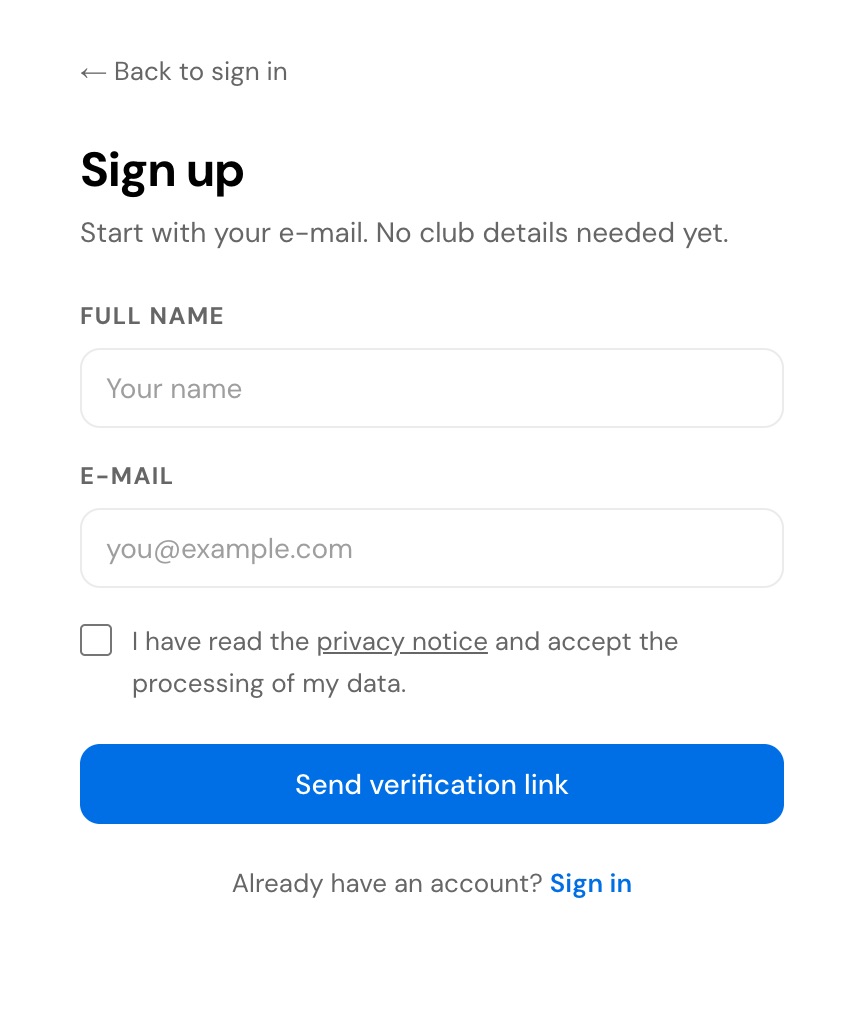
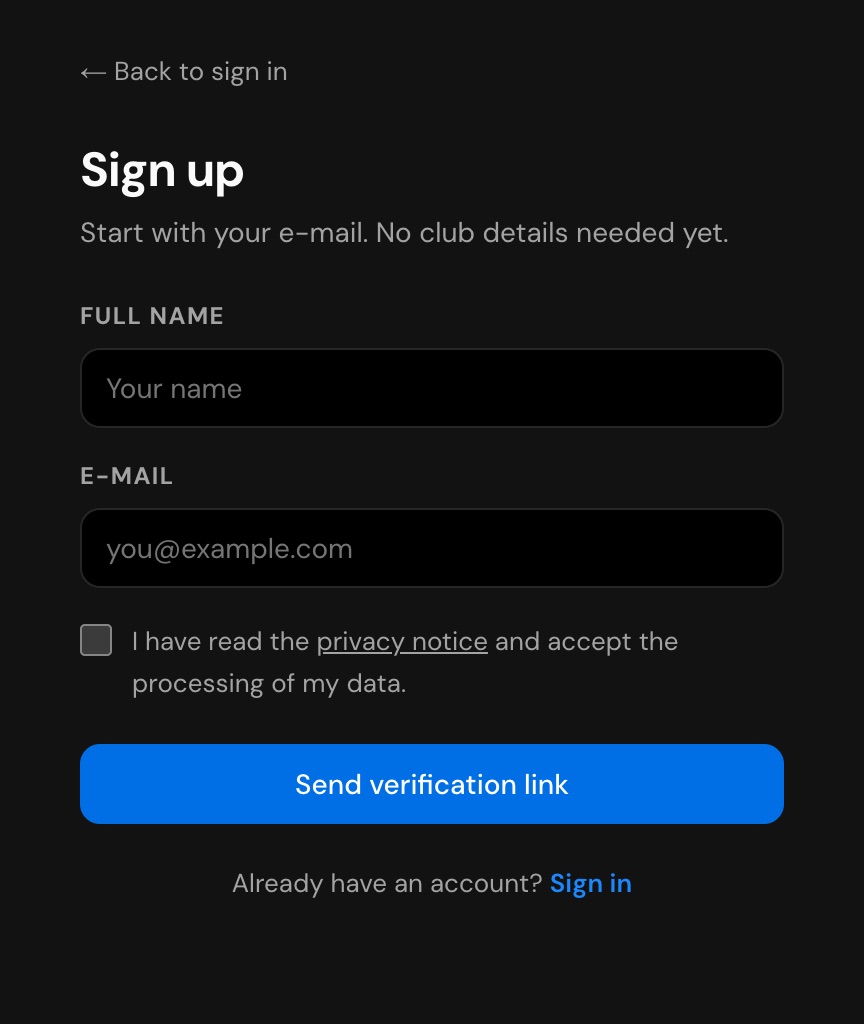
Already have a club on Müsabık? Click Already registered? Sign in, then Send join request on the tournament's card.
Step 2
Activate your account and create your club
Open the e-mail and click Set password. Enter your password twice and click Set password and continue.
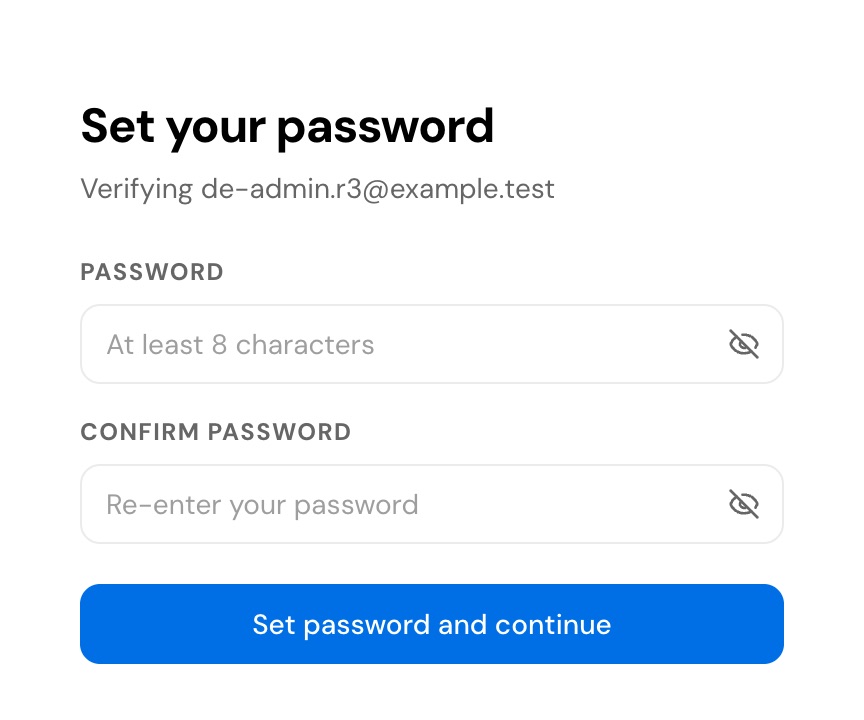
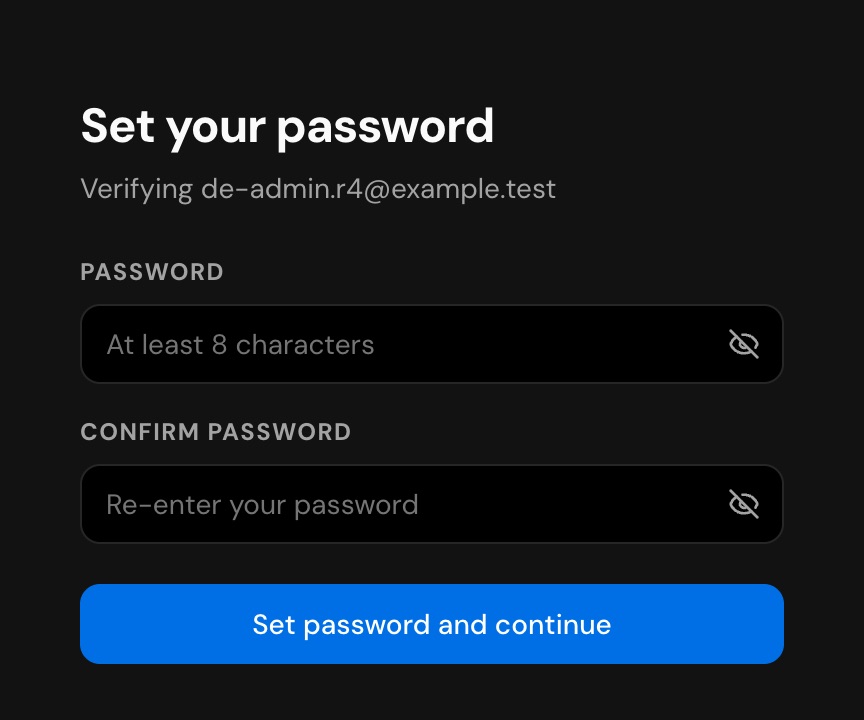
In Create your club, enter the club name in Latin letters and choose your country. Phone and address are optional. Click Create club.
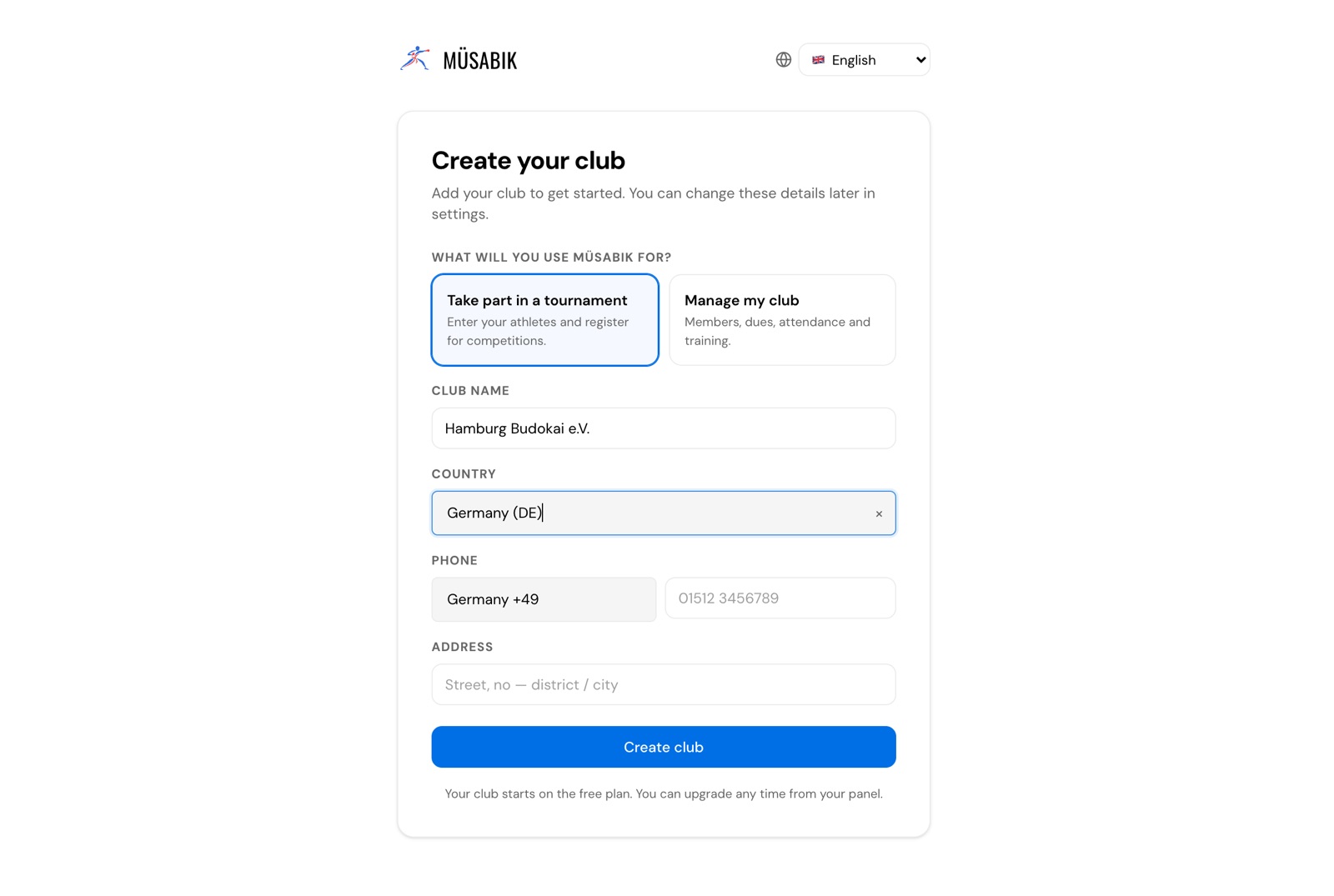
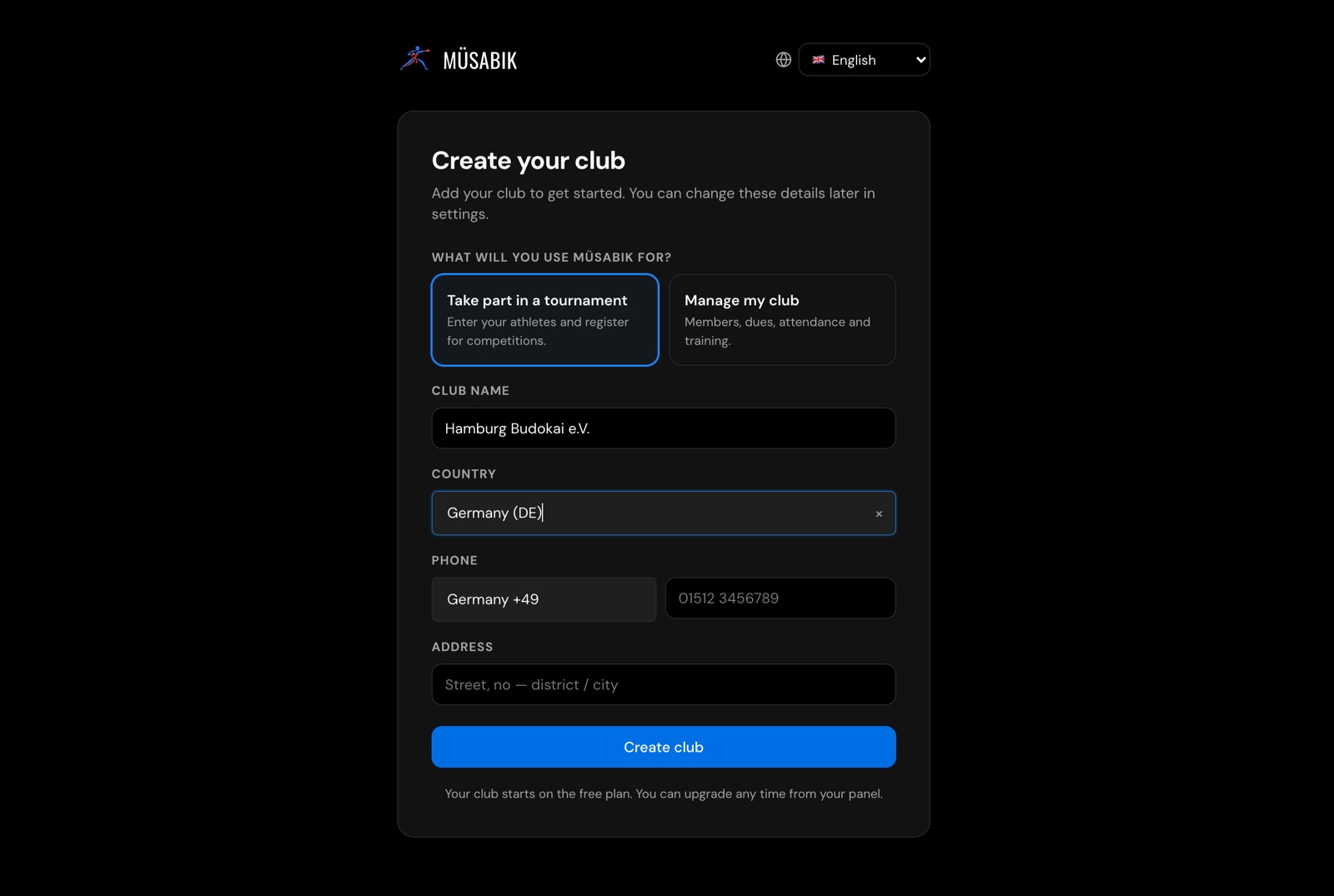
Creating the club sends your join request to the organiser. You do not need to send it separately.
Step 3
Wait for the organiser's approval
After creating the club you land on the tournament's Athletes tab. The organiser reviews your request and you get the result by e-mail.
You can add your athletes while you wait. You tick them for the tournament after approval.
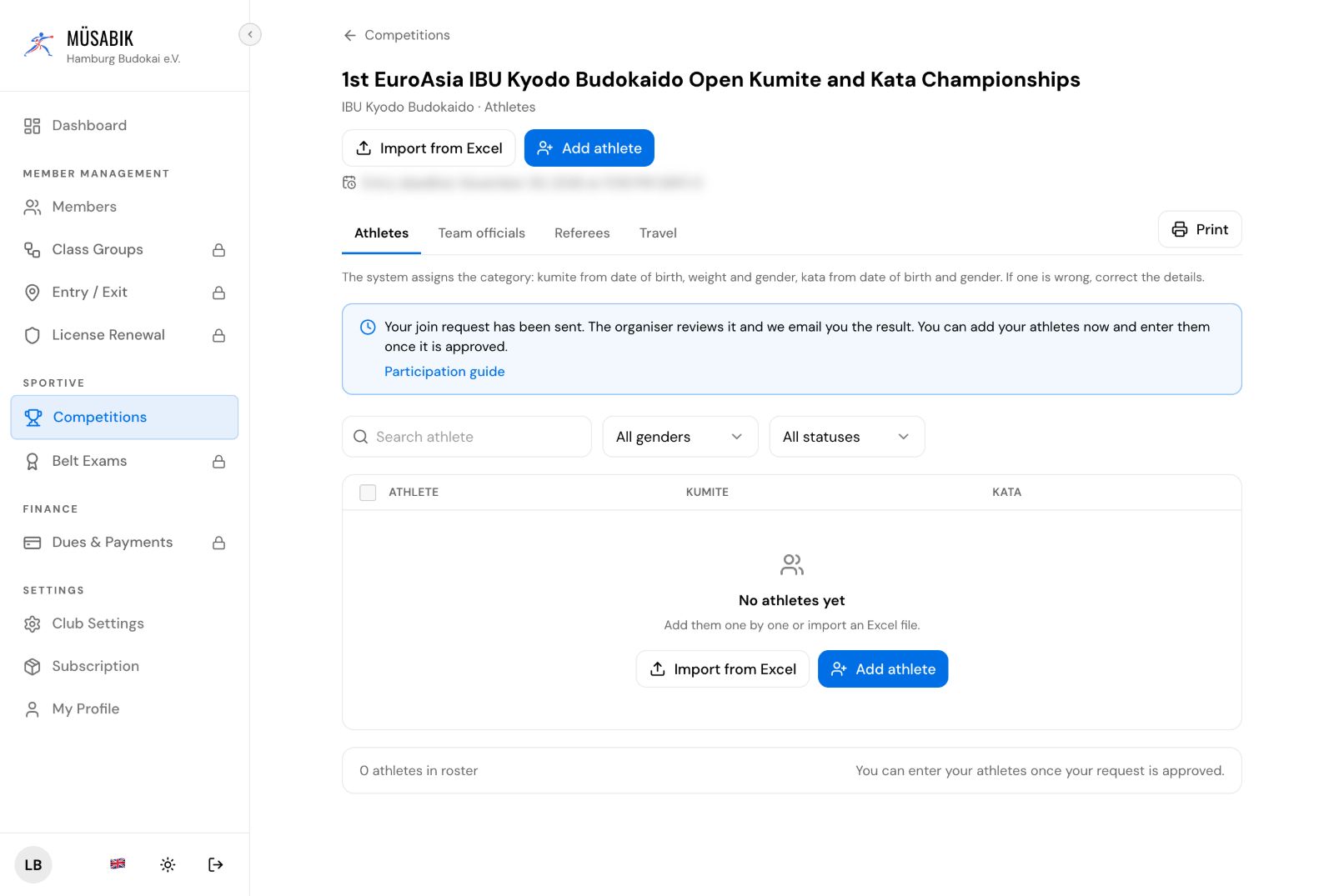
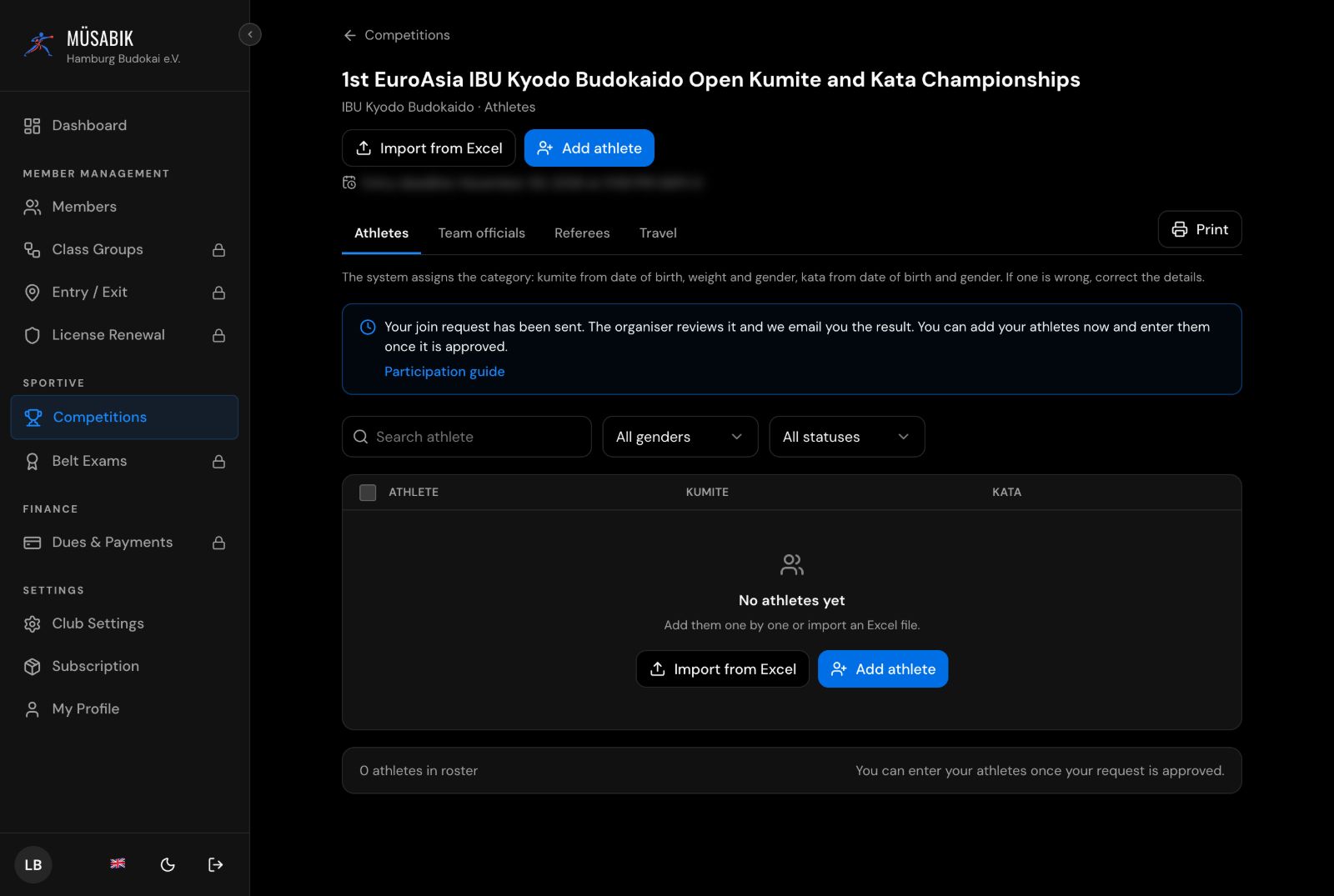
The panel is in English and Turkish: if you chose another language, it opens in English. Switch between them with the flag button at the bottom of the left menu.
If your request is rejected, the e-mail gives the reason and Send request again is on Competitions.
Tournaments that admit every club skip this approval.
Step 4
Add your athletes
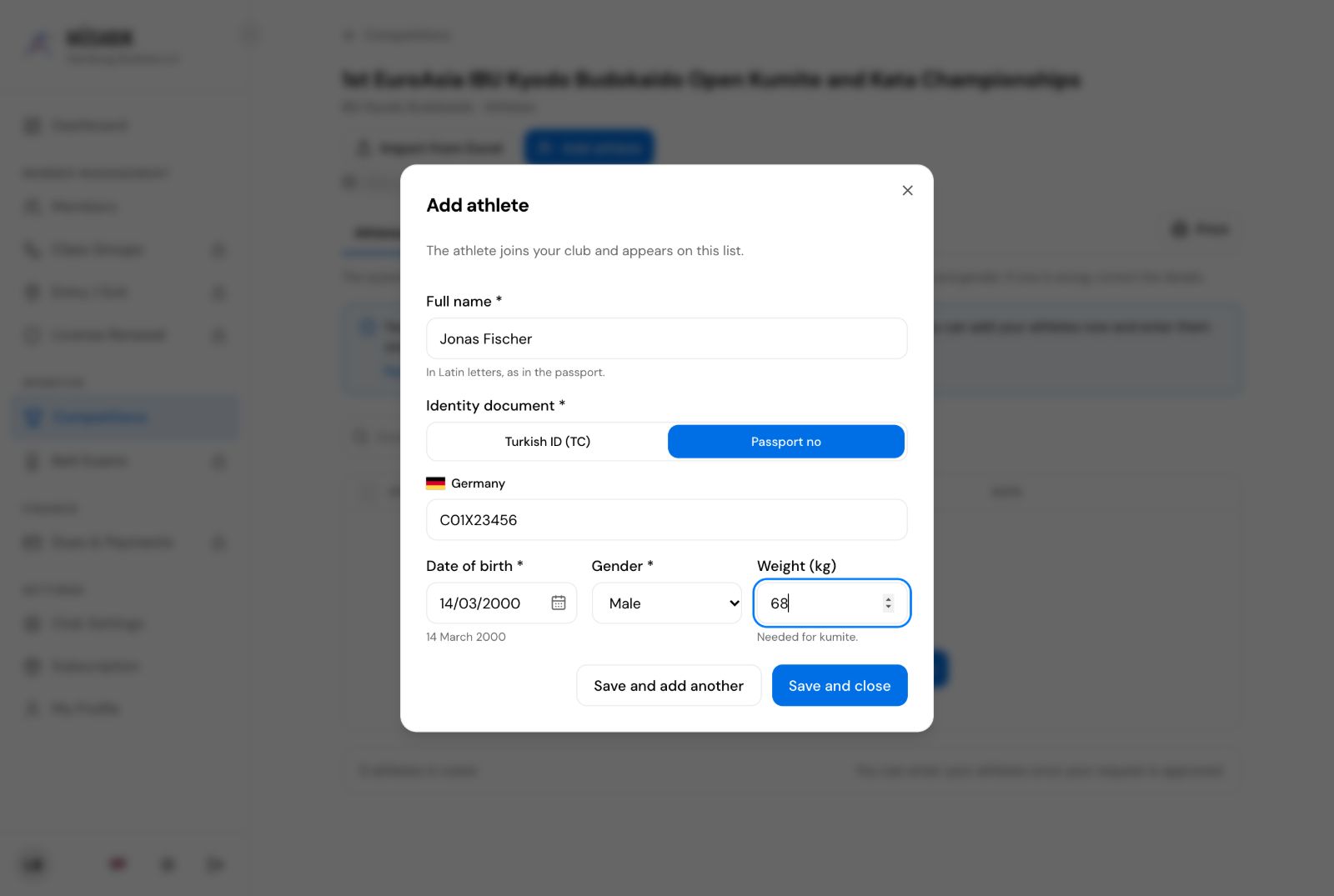
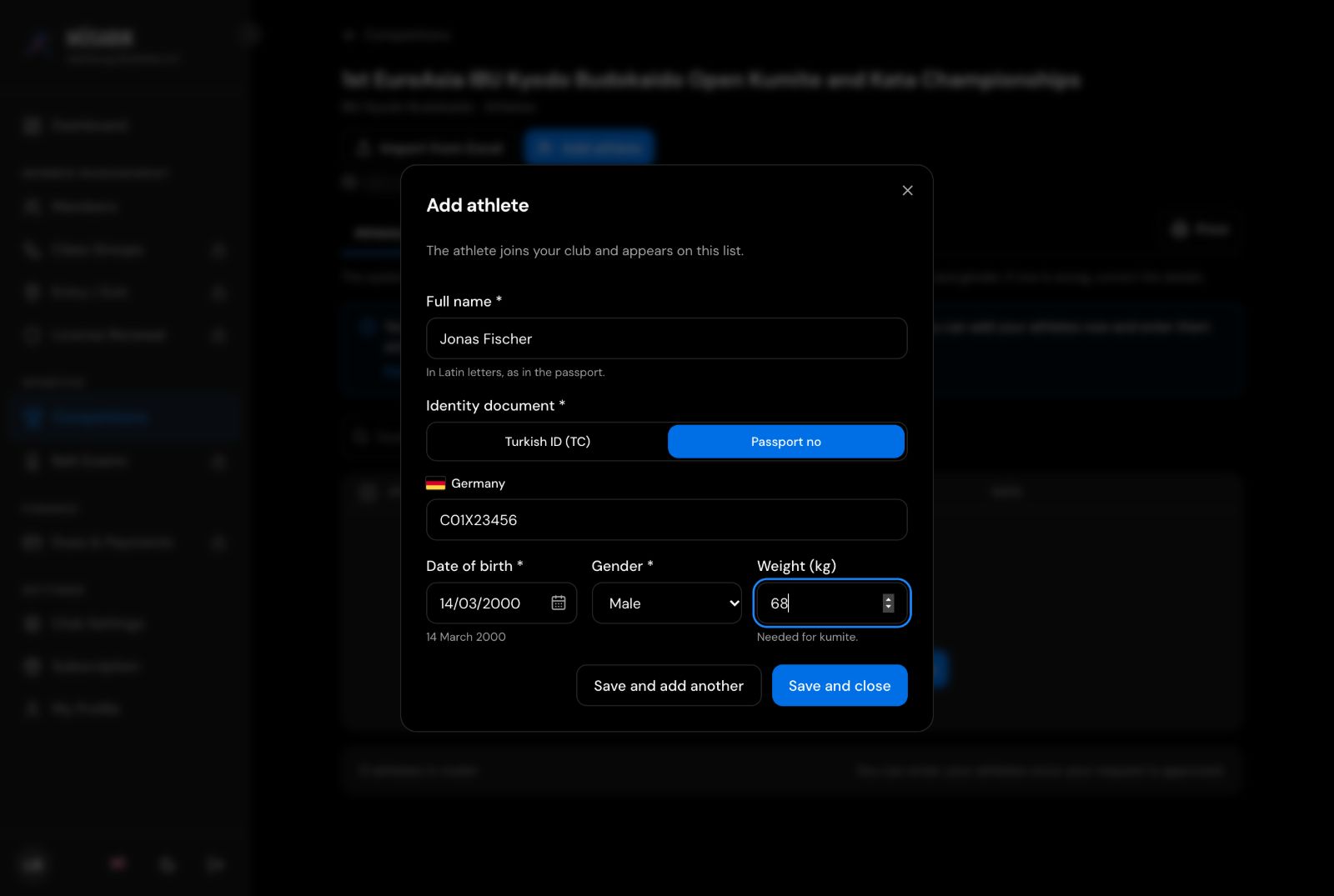
On the Athletes tab, click Add athlete. Enter the full name as in the passport, in Latin letters, then the passport number, date of birth, gender and weight (needed for kumite). Save and add another keeps the window open.
For a large club, use Import from Excel: download the template, fill it in and upload it.
Once approved, tick Kumite or Kata on each row. The system assigns the category itself.
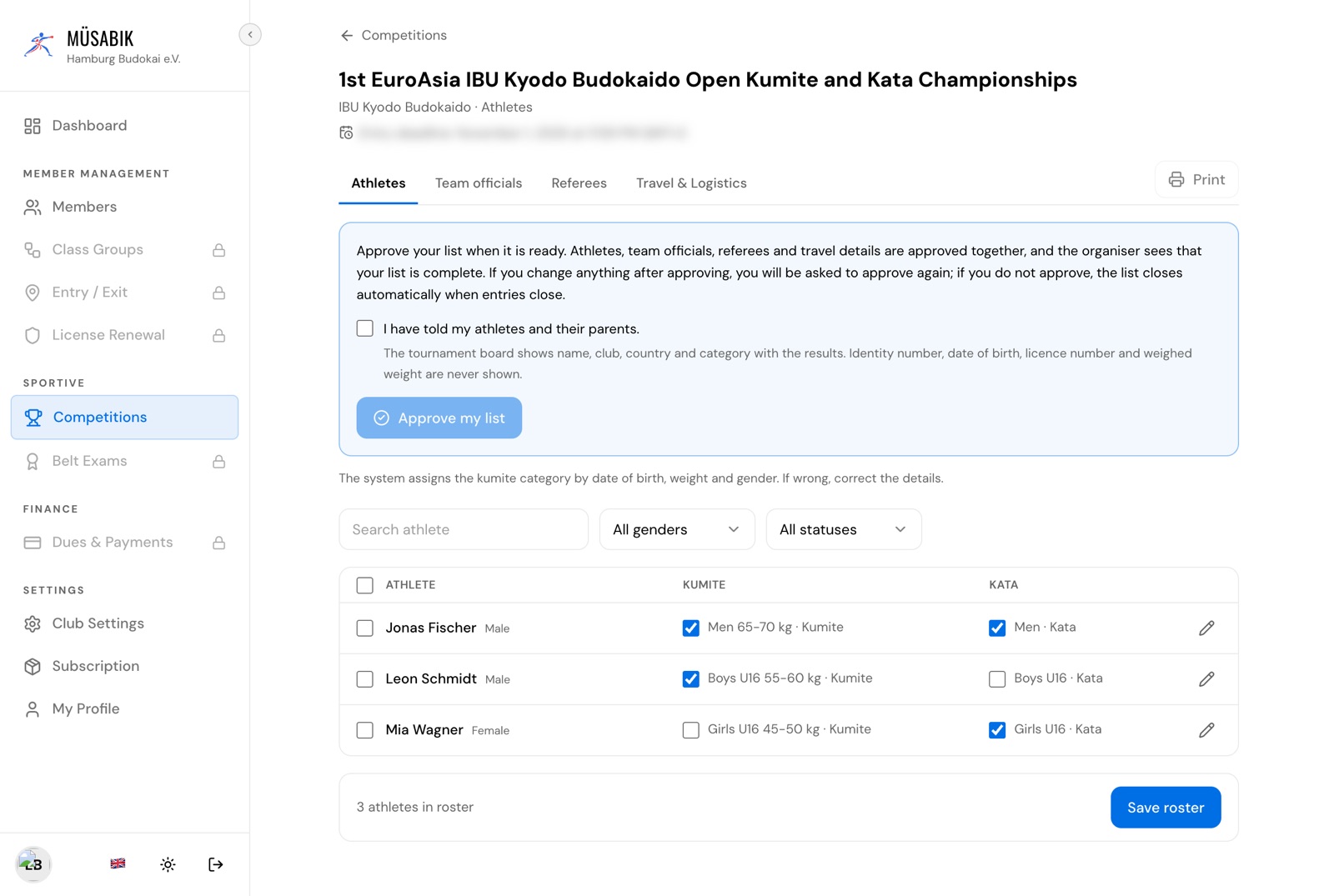
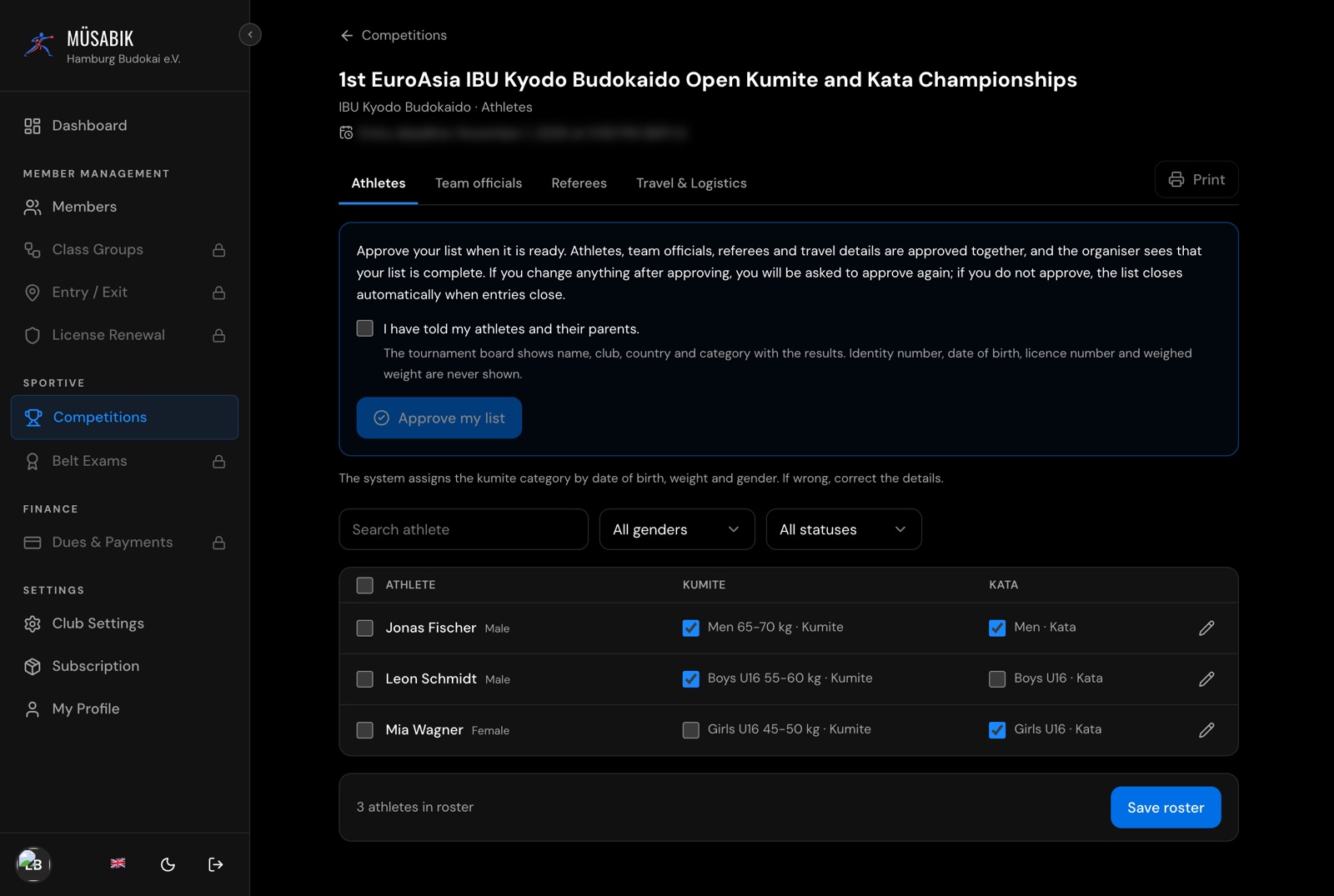
To correct an athlete, click the pencil on their row. If the screen then says your list needs to be submitted again, click Save and submit.
Coaches do not go on the athlete list; add them on the Team officials tab.
Step 5
Declare your team officials and referees
On the Team officials tab, click Add and choose the role: Head of Delegation, Coach, Doctor / Medical, or Parent / Relative for family who stay. Country, passport number and gender are required.
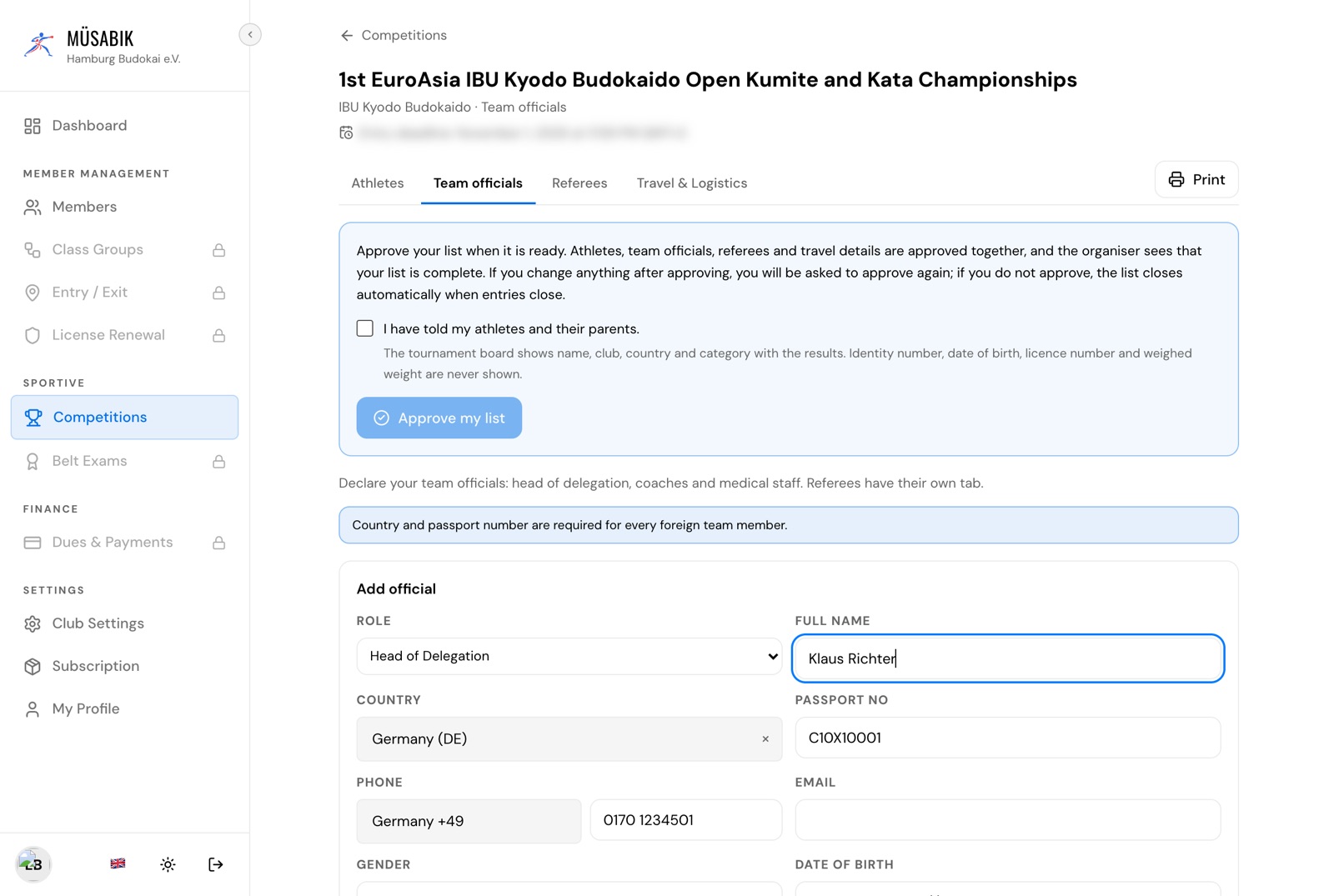
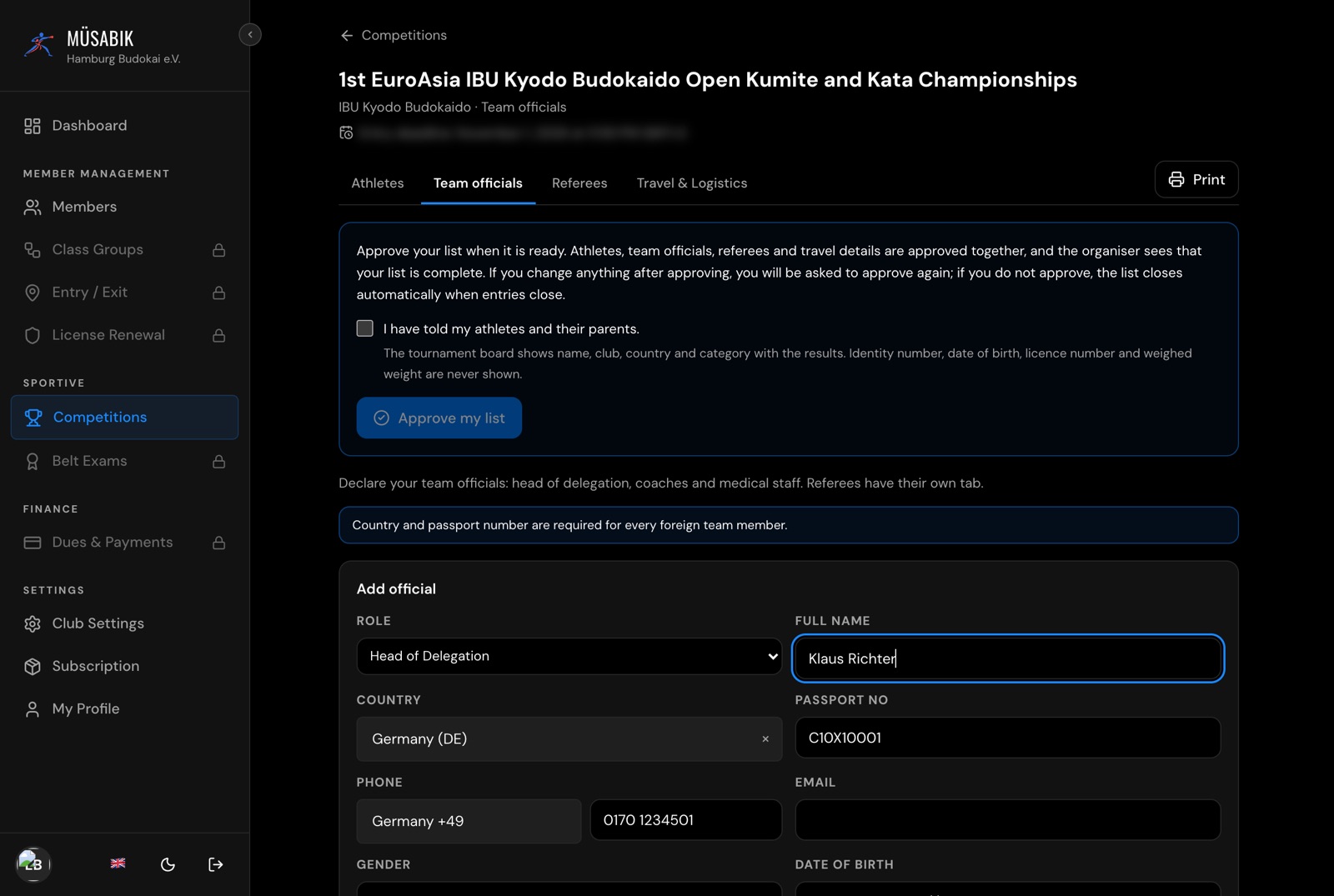
For a parent or relative, also choose the athlete, official or referee they accompany. Accommodation is planned from this list.
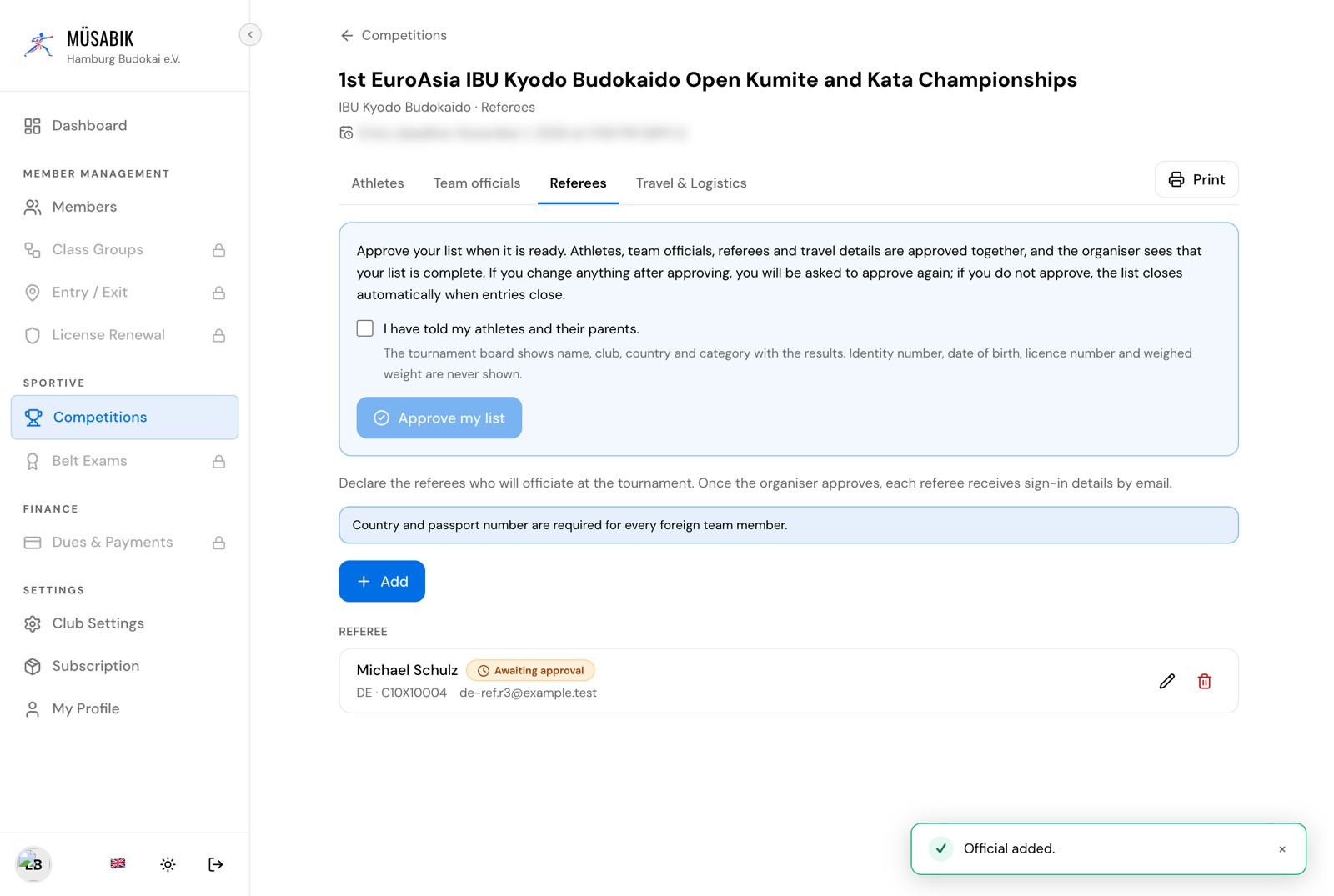
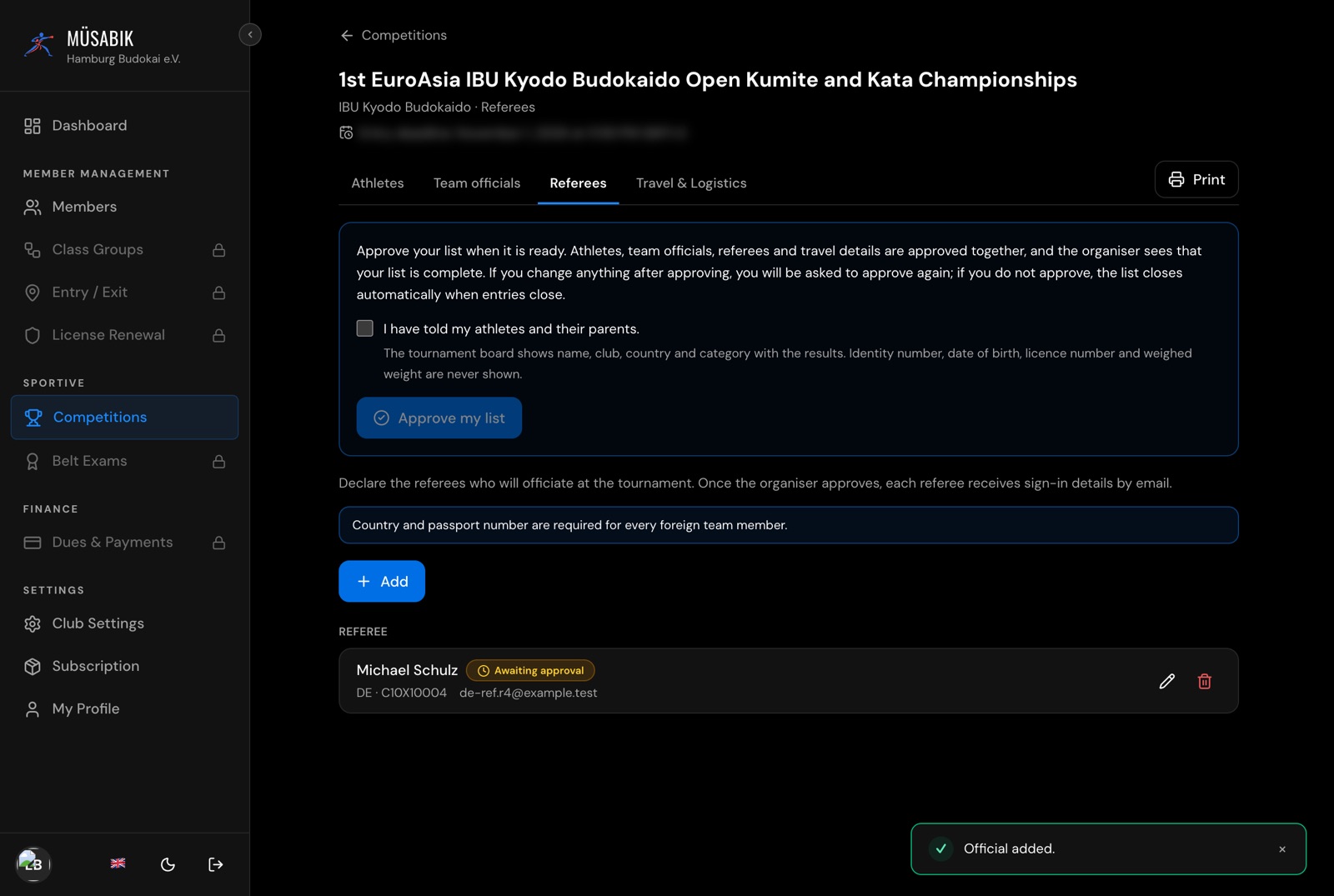
On the Referees tab, add each referee with their own e-mail address. When the organiser approves a referee, the sign-in details are e-mailed to them.
Step 6
Travel
On the Travel tab, enter each arrival and departure as a trip. Date and time go together, in Türkiye time, and the number of people is required.
Add more trips with Add arrival or Add departure, tick Transfer needed on each trip that needs one, and click Save logistics.
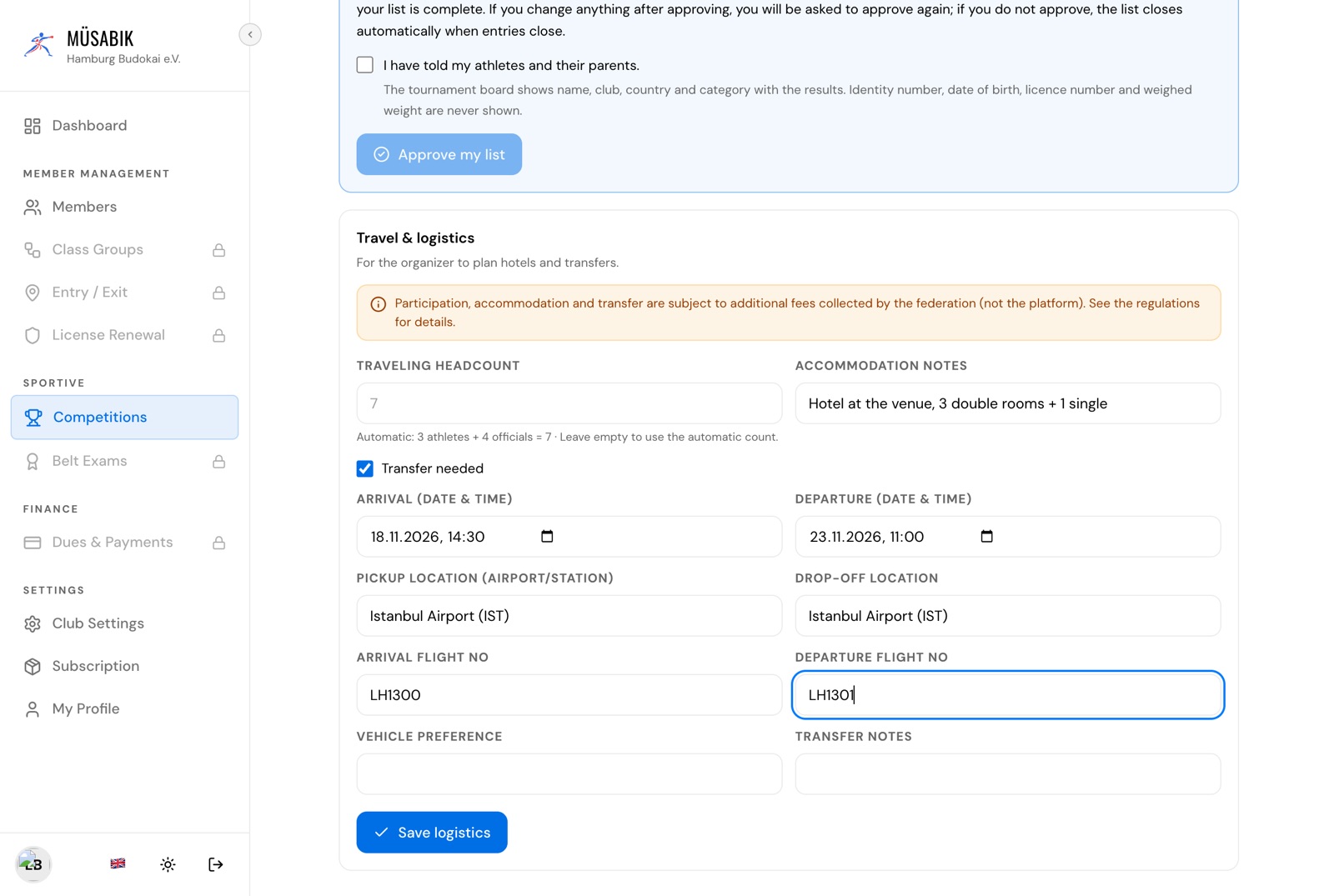
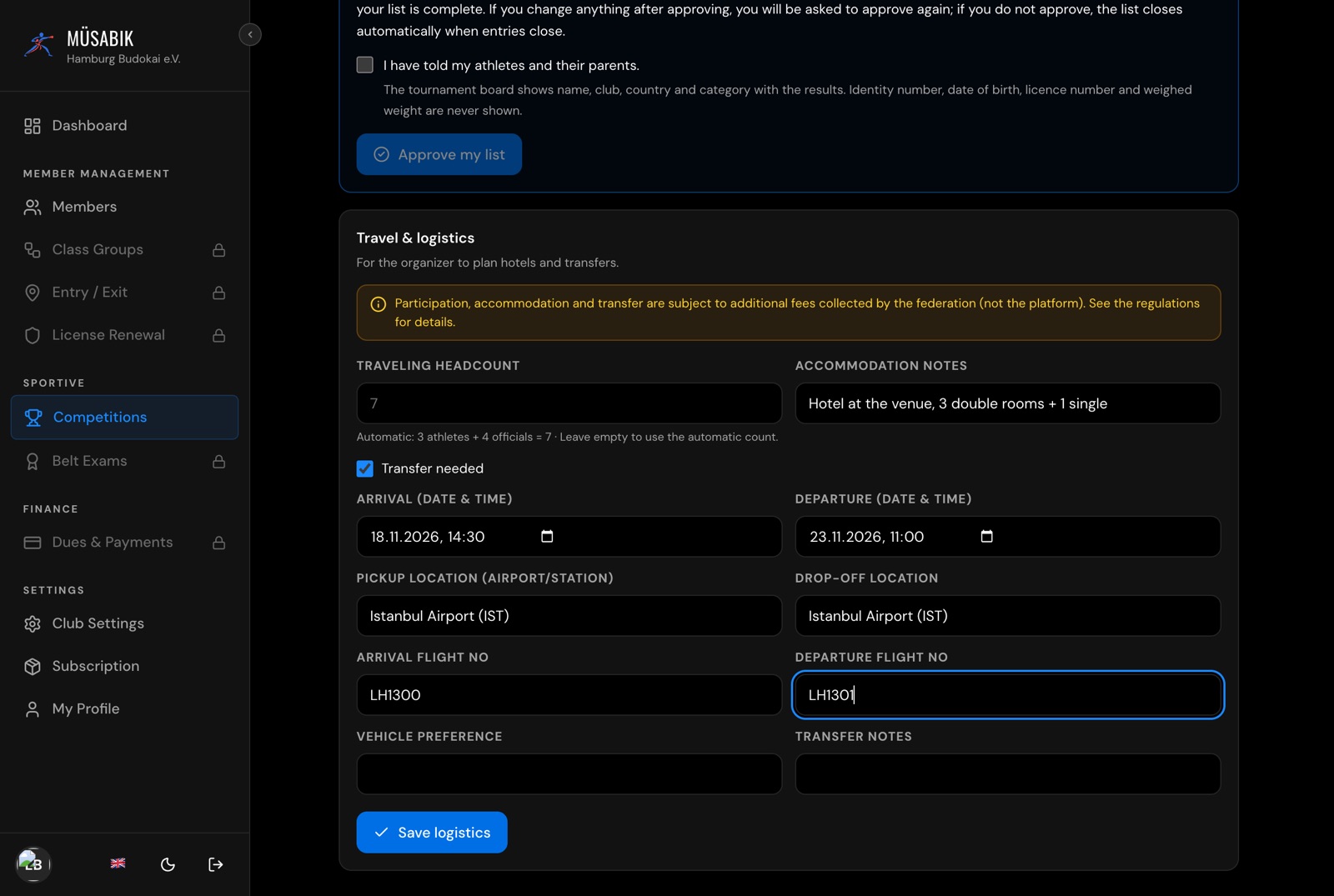
Fees, if any, are collected by the organising federation, not by the platform. Each trip that needs a transfer is a separate transfer: the transfer fee in the tournament information is charged per transfer. See the tournament regulations.
Step 7
Submit your list
At the bottom of the Athletes tab, tick I have told my athletes and their parents and click Save and submit. Your list goes to the organiser. There is nothing else to send or sign.
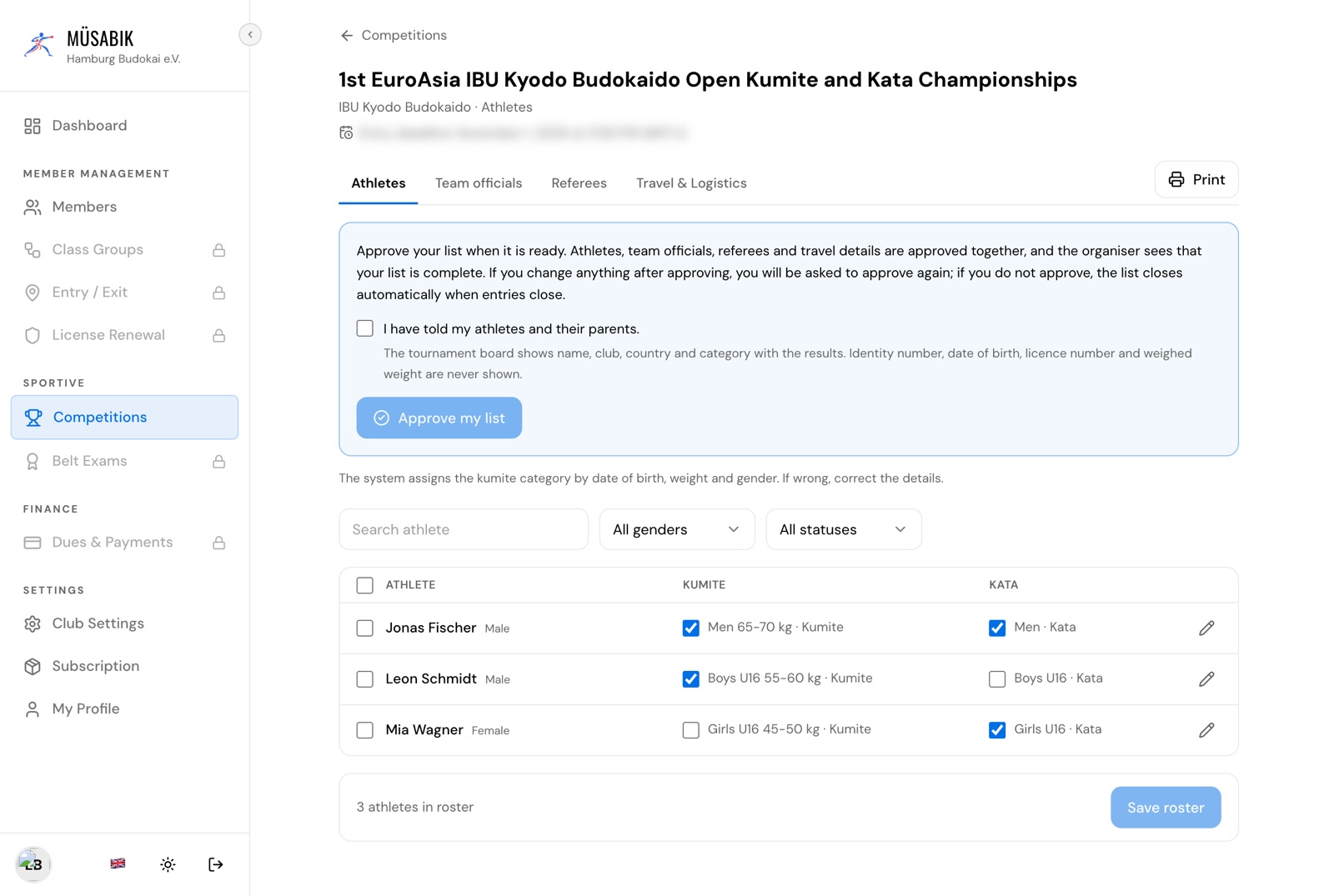
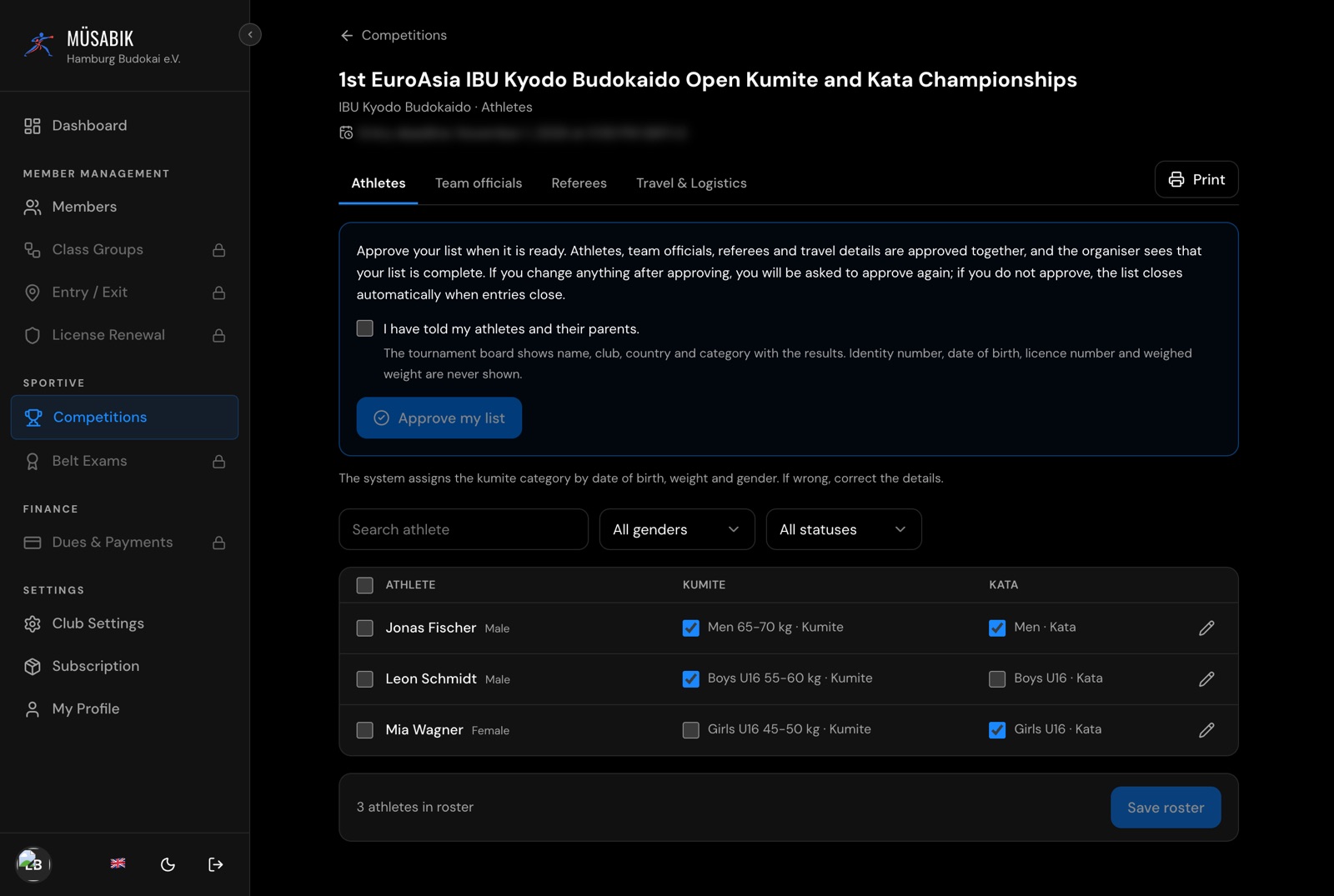
The first submission is confirmed by e-mail. Until the deadline you can keep editing: every save on Athletes, Team officials, Referees or Travel submits the list again.
Team officials and travel do not hold up your list; they are needed for hotel and transfers.
If an athlete has no category, the list is saved but not submitted and the bar at the top says what to fix. When the deadline passes, the list closes as it is.
Print at the right of the tab bar prints the current tab; Print on the tournament card opens a menu to print the whole entry pack or a single list.


Common situations
- The verification e-mail didn't arrive
- Check your spam folder. Filling in the form again with the same e-mail sends a new link; only the latest link works. Still nothing? Message Müsabık with the WhatsApp button below.
- I can't sign in
- Use Forgot your password? on the sign-in page, even if you never set a password. A new link comes by e-mail.
- I signed in but have no club
- You are taken to Create your club — finish step 2.
- I can't tick my athletes for the tournament
- The boxes open when the organiser approves your request and close at the deadline. Until approval you can still add athletes with Add athlete.
- My join request was rejected
- The e-mail gives the reason. Open Competitions, fix what it asks for and click Send request again. After the deadline, contact the organiser.
- Can I add athletes from an Excel file?
- Yes. On the Athletes tab, click Import from Excel, download the template, fill it in and upload it. It has weight and nationality columns. An athlete already in your club is not changed; correct them with the pencil.
- Why must names be in Latin letters?
- The organiser, referees, weigh-in desk and printed lists read Latin letters. If a name is in Cyrillic, Arabic or another script, write it as on the Latin line of the passport. Accents such as é, ü or ñ are fine.
- An athlete row shows Missing: …
- Click it and fill in date of birth, gender and weight.
- Nothing opens when I click Print
- Allow pop-ups for the site and try again.
Questions
Questions about the tournament — entry, categories, fees, travel — go to the organiser listed on the tournament page. For help with your account, signing in or the screens, message Müsabık on WhatsApp.
Message Müsabık on WhatsApp