Tournament entry for clubs in Türkiye
Sign in with your club code, add your athletes and delegation, and save. Each save sends your list to the organiser.
Screenshots are taken with sample data.
Guide for clubs outside TürkiyeStep 1
Sign in
Get your club code and temporary password from the Platform Administrator. On musabik.com, press Sign in and enter the club code and password.


Step 2
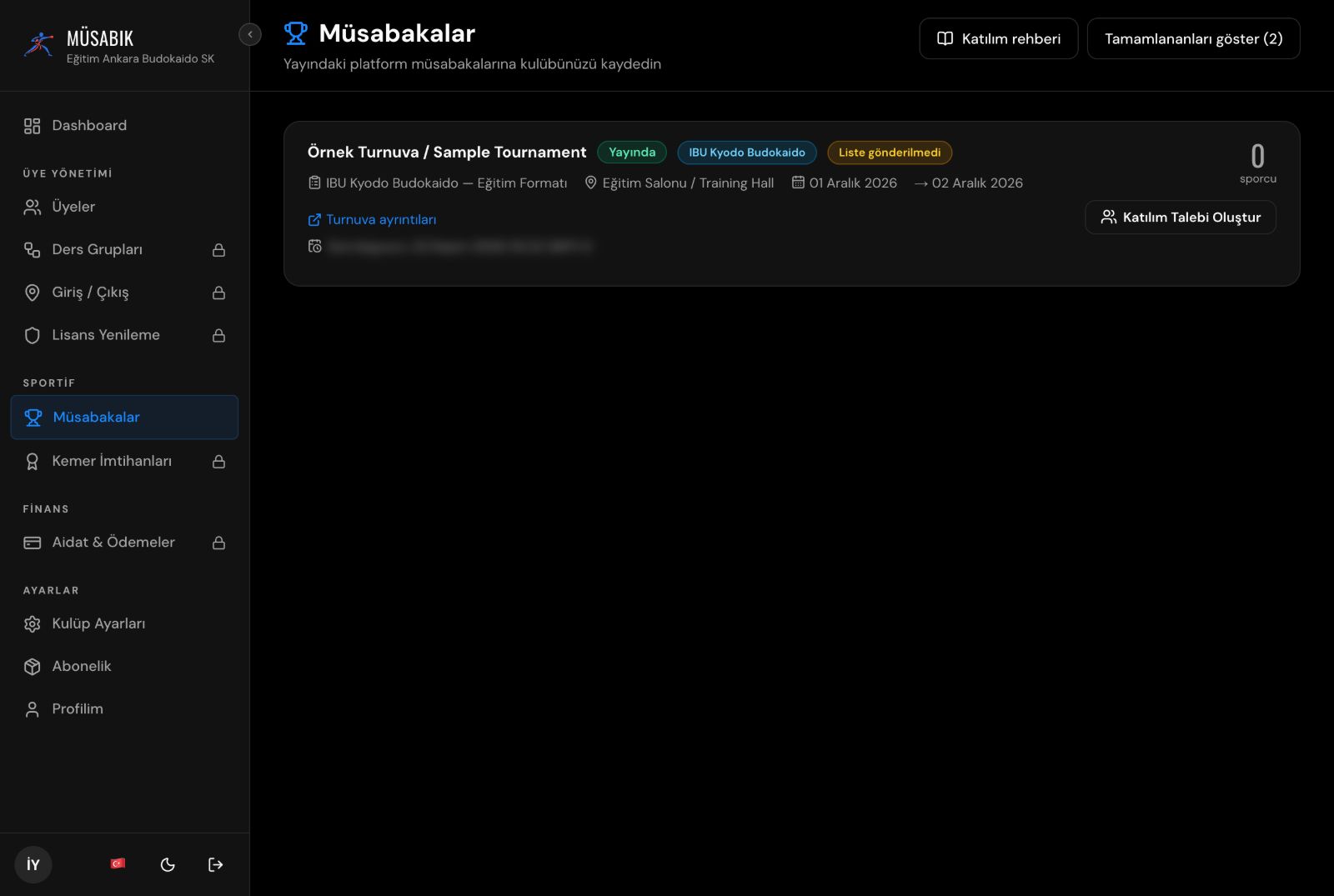
Open the tournament
In Competitions, press Add athletes on the tournament card (Edit athletes if you added athletes before).
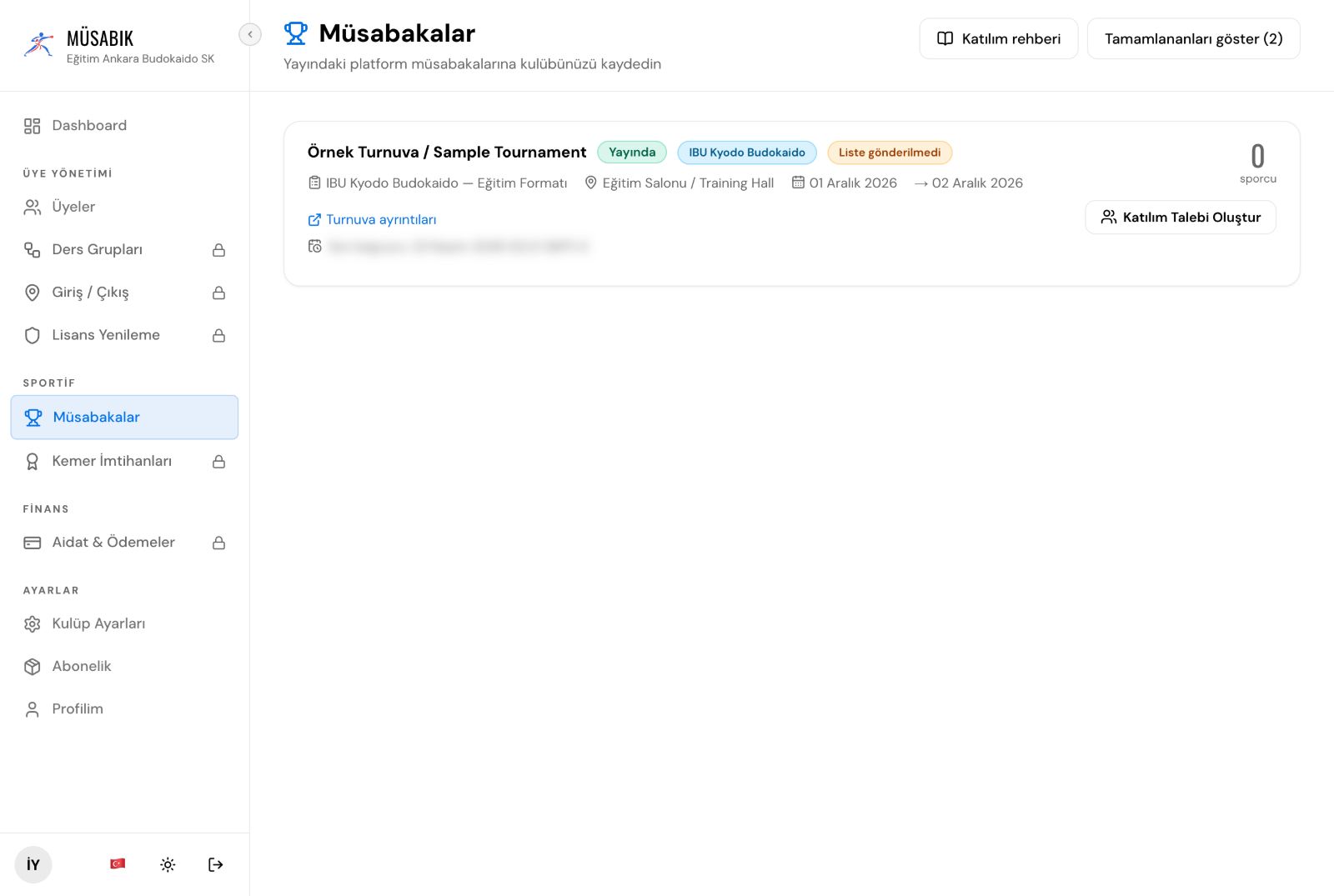
Step 3
Add athletes
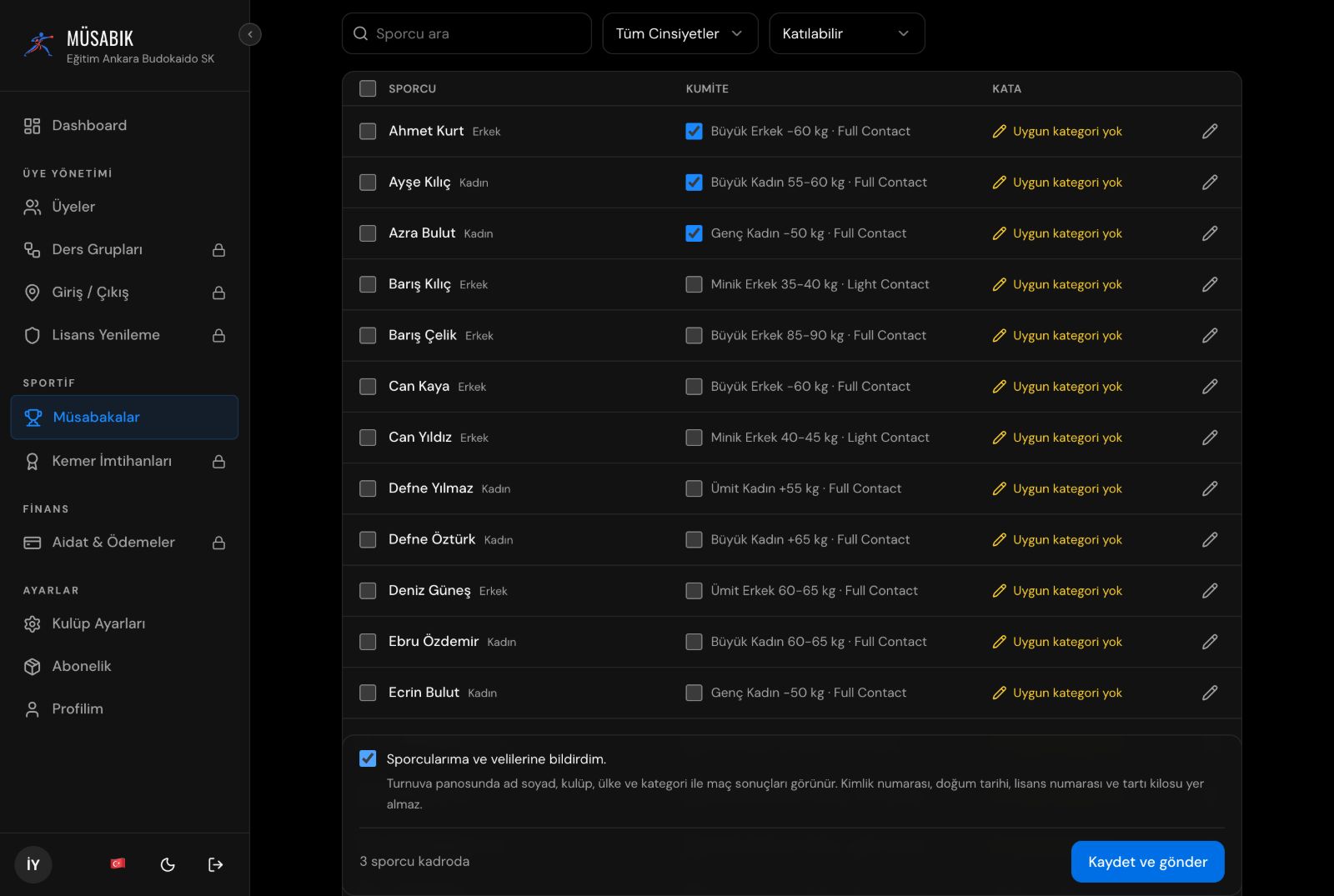
If the tournament has an entry list, the screen opens with the Eligible filter. For an athlete with missing details, press the pencil and complete the date of birth, gender, weight and Turkish ID number.
Tick Kumite / Kata for athletes who will compete; the category is assigned automatically. On the first save, tick I have told my athletes and their parents and press Save and submit.
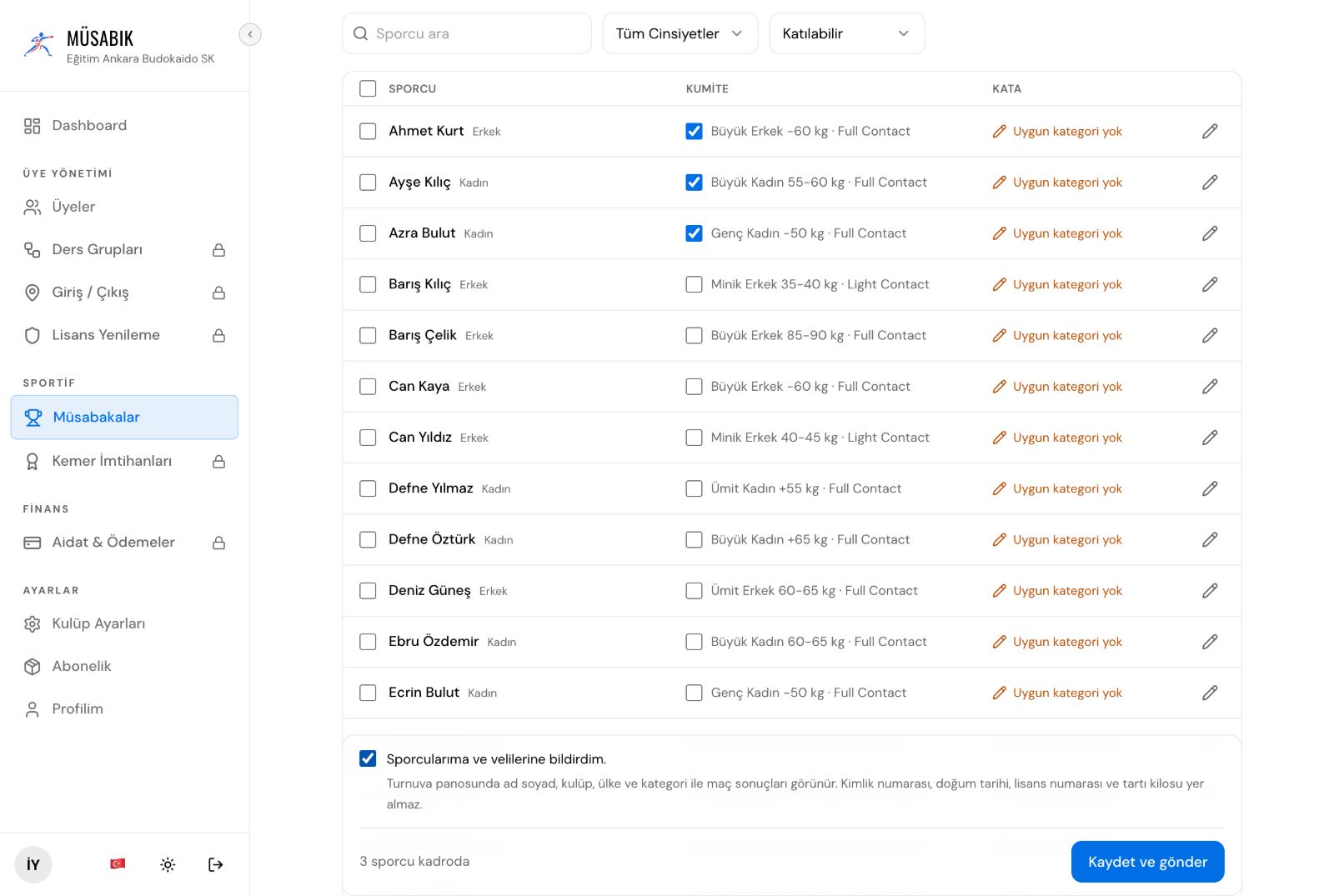
In a tournament with an entry list, your listed athletes are already on this screen; anyone not on the list cannot be added, so message the organiser. Without a list, press Add athlete on this screen and enter their name, Turkish ID number, date of birth, gender and weight.
Step 4
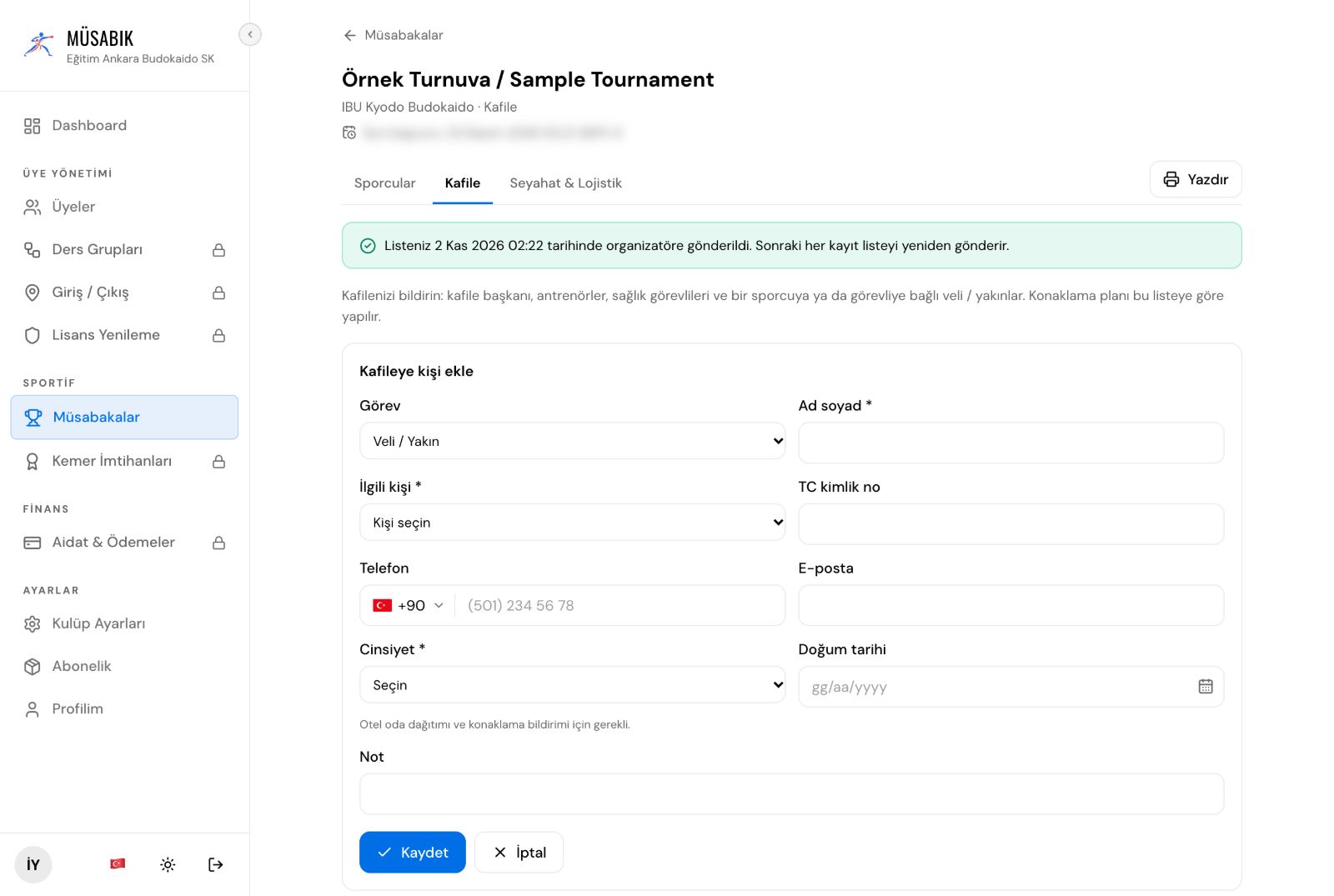
List your team officials
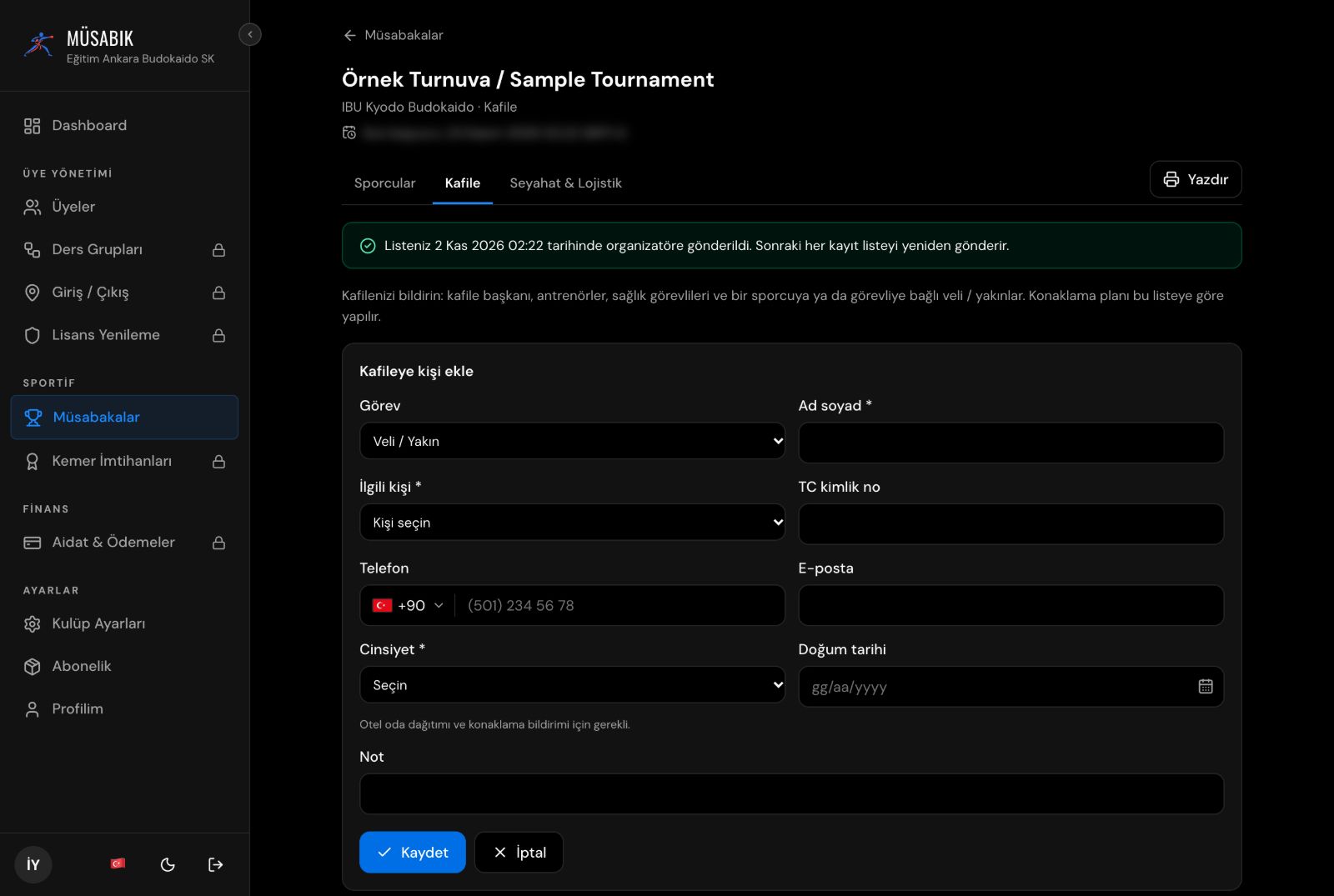
On the Team officials tab, press Add. Choose the role, enter the name, gender and Turkish ID number, and press Save. For a parent or relative, choose the person they accompany under Related person.
Step 5
Travel and transfers
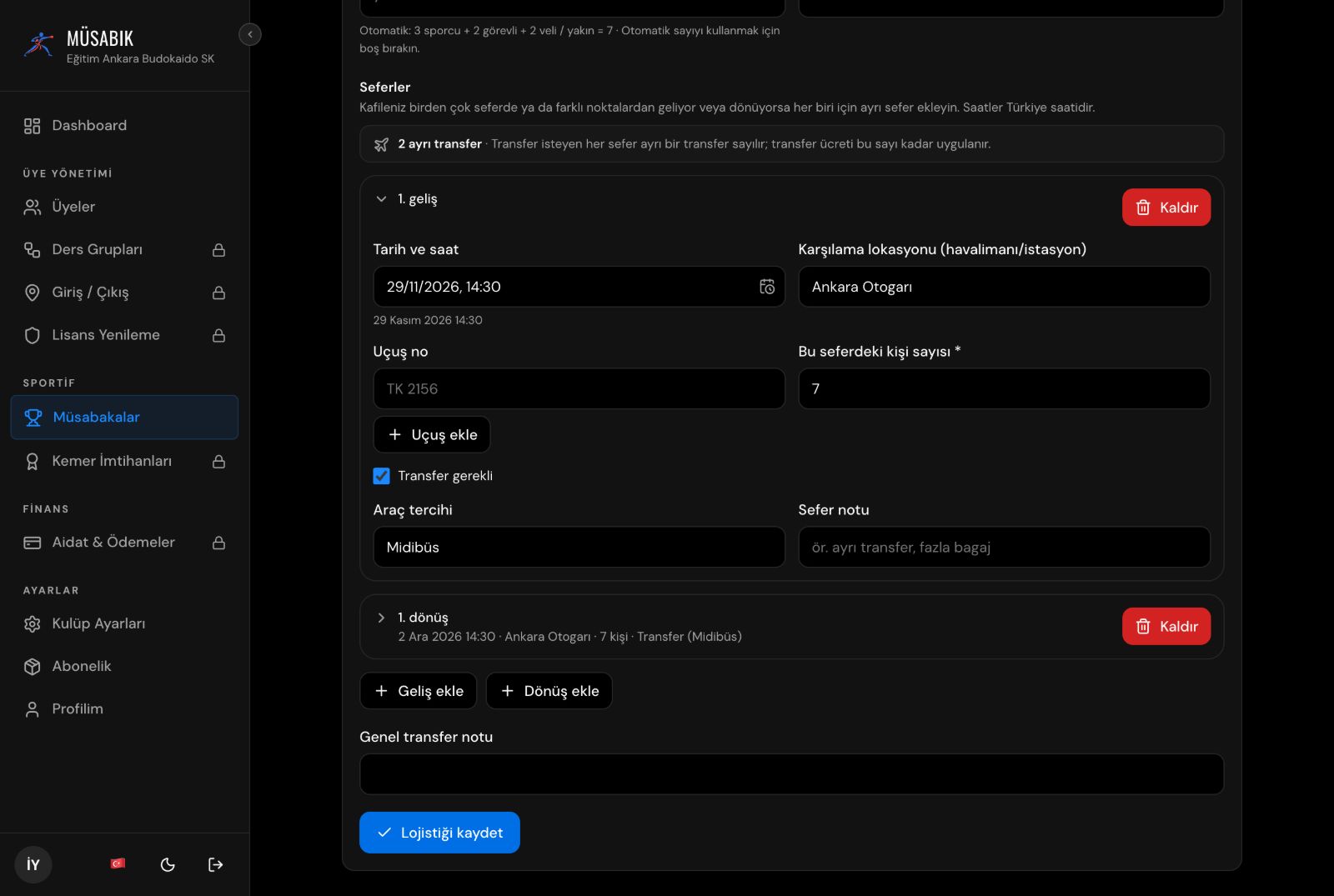
On the Travel tab, enter the arrival and departure trips with the number of people on each trip. Tick Transfer needed on the trips that need a transfer and press Save logistics.
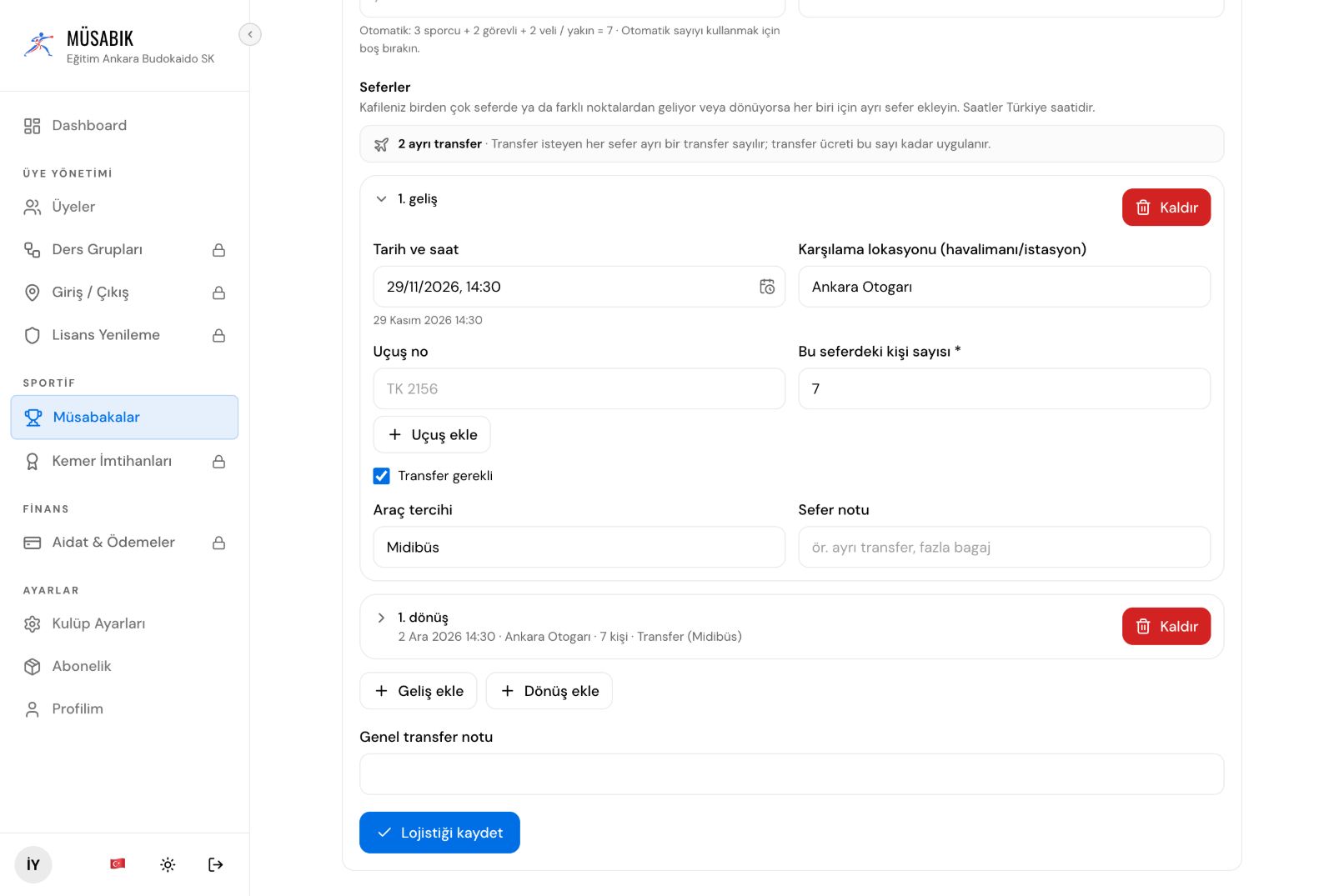
Transfers are charged separately. See the regulations for details.
Step 6
Check
The top of the Athletes screen shows that your list was submitted to the organiser. On the tournament's Participants page, search for your club to see your athletes.
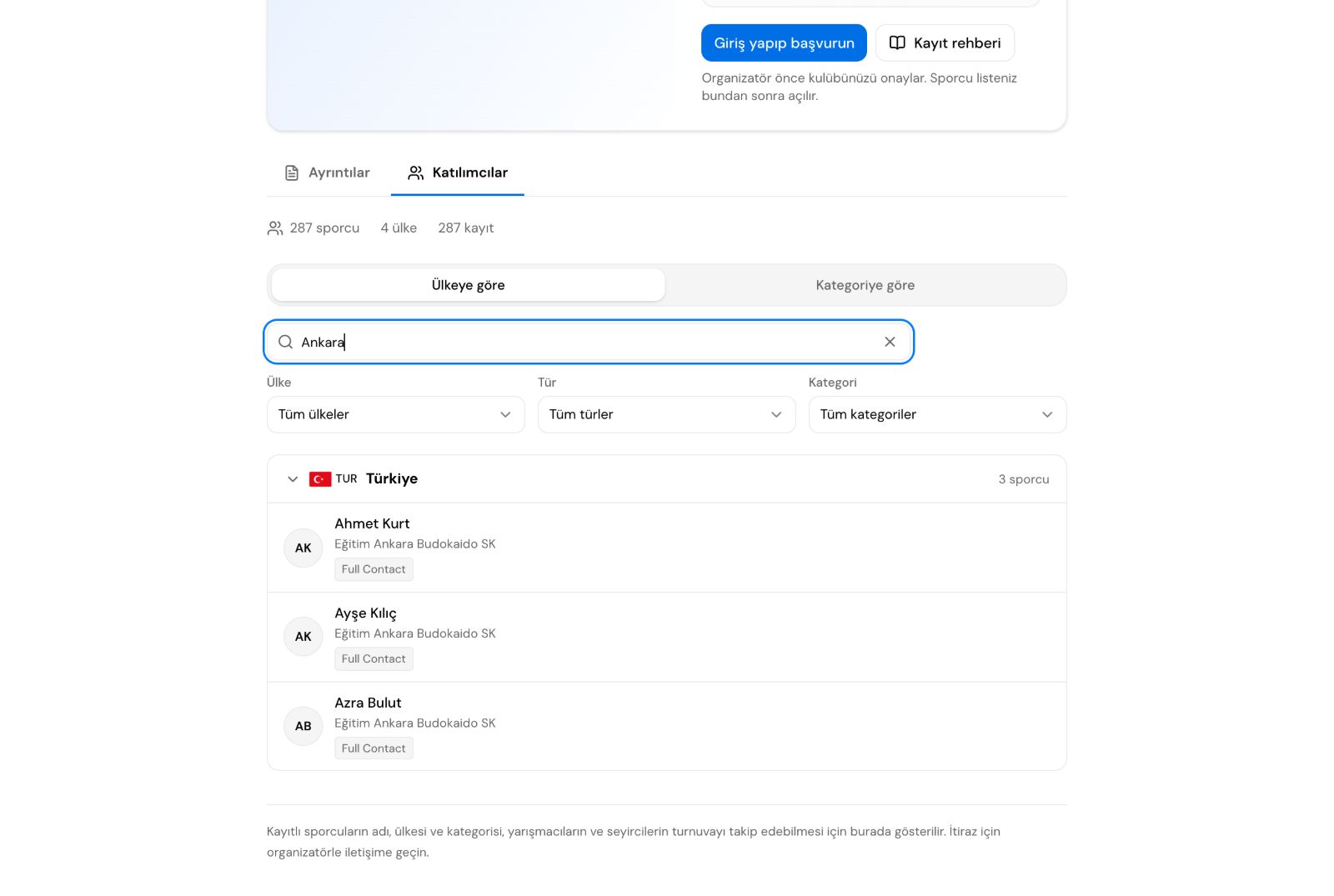
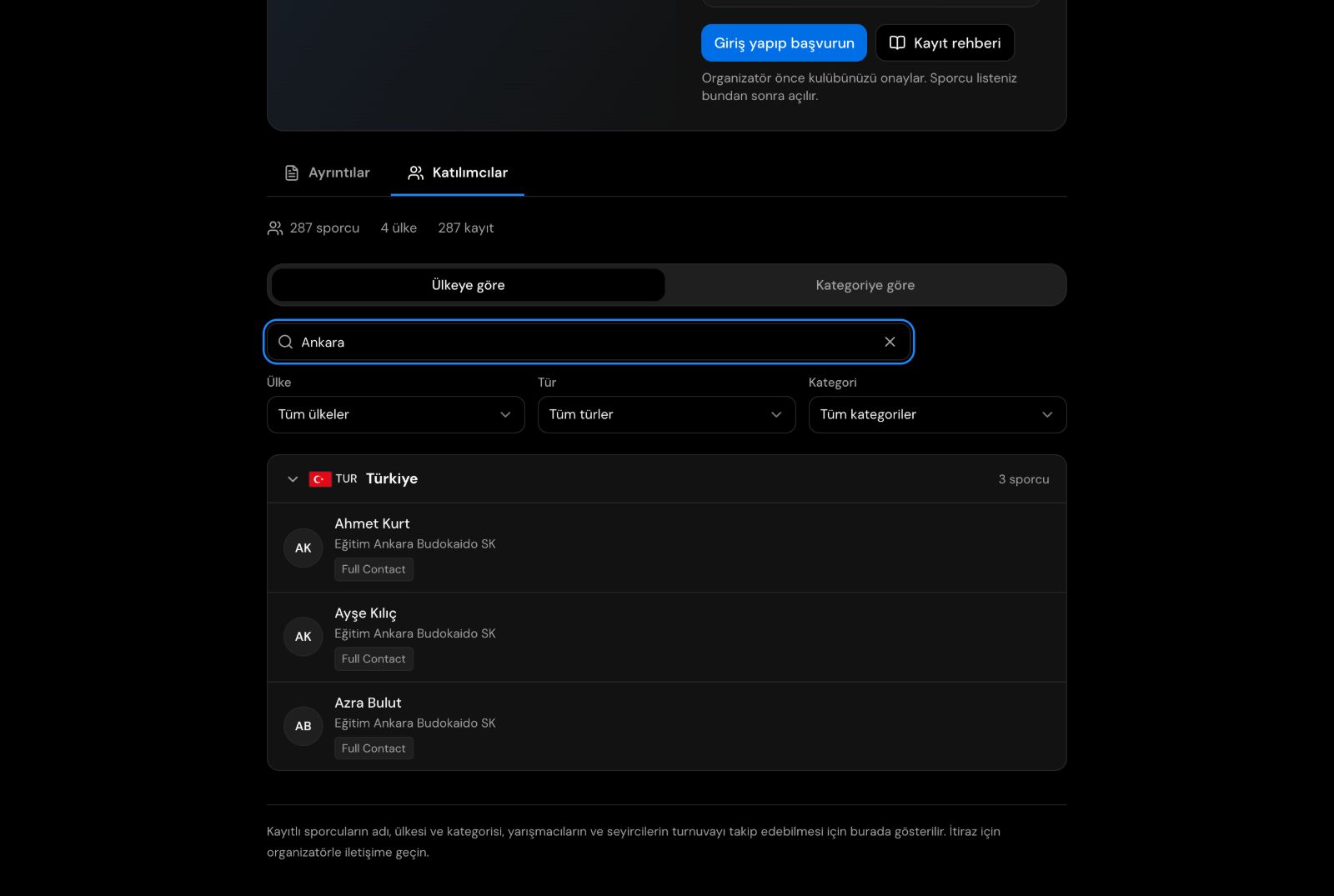
There is no need to send the list as a PDF or screenshot.
Common questions
- I forgot my password
- Message the Platform Administrator; your password will be reset.
- One of my athletes is not on the screen
- Choose All statuses in the status filter. If the athlete is still missing: in a tournament with an entry list, message the organiser; without a list, search Members by name, add them with New Member if they are not a member, or message the Platform Administrator if they are.
- An athlete shows "Not on the entry list"
- Only athletes on the entry list can be added to the tournament; direct questions to the organiser.
- I cannot remove someone from the delegation
- A parent or relative is linked to that person; remove them first or link them to someone else.
Questions
For sign-in details, passwords and screens, message the Platform Administrator on WhatsApp. For the entry list, categories and tournament rules, contact the organiser shown on the tournament page.
Message on WhatsApp