How to enter a tournament as a club
Every step a club or national federation takes to enter a tournament on Müsabık — from creating an account to approving the final list. Everything happens online; how long it takes depends on the size of your delegation.
Screens are shown in English with example data. The entry deadline is blurred in the screenshots on purpose: the current deadline is always on the tournament page.
You are entering
1st EuroAsia IBU Kyodo Budokaido Open Kumite and Kata Championships
- Entry deadline
- November 1, 2026 at 11:59 PM GMT+3
The deadline can change; this page always shows the current one.
Back to the tournament pageStep 1
Create your account
Open the tournament from the Tournaments page and choose your language at the top of the page.
Click Sign in to apply, then Club registration on the sign-in page.


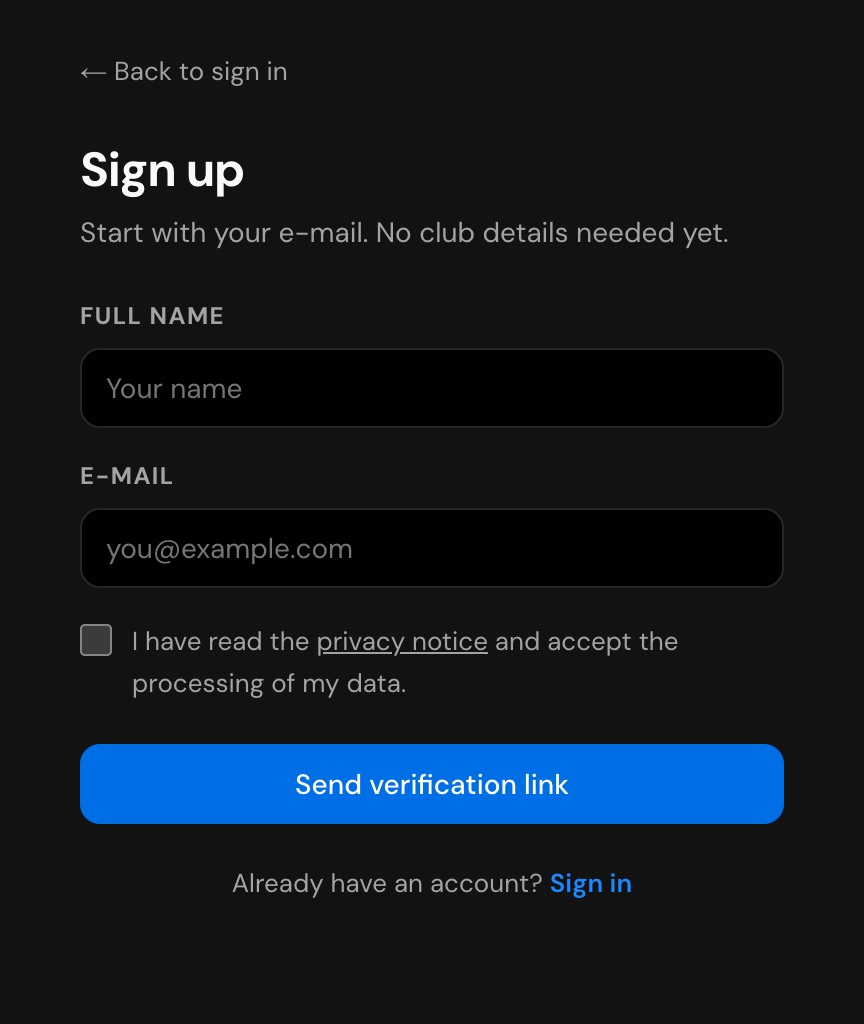
Enter your full name and e-mail, tick the privacy notice box and click Send verification link. The link in the e-mail is valid for 24 hours.
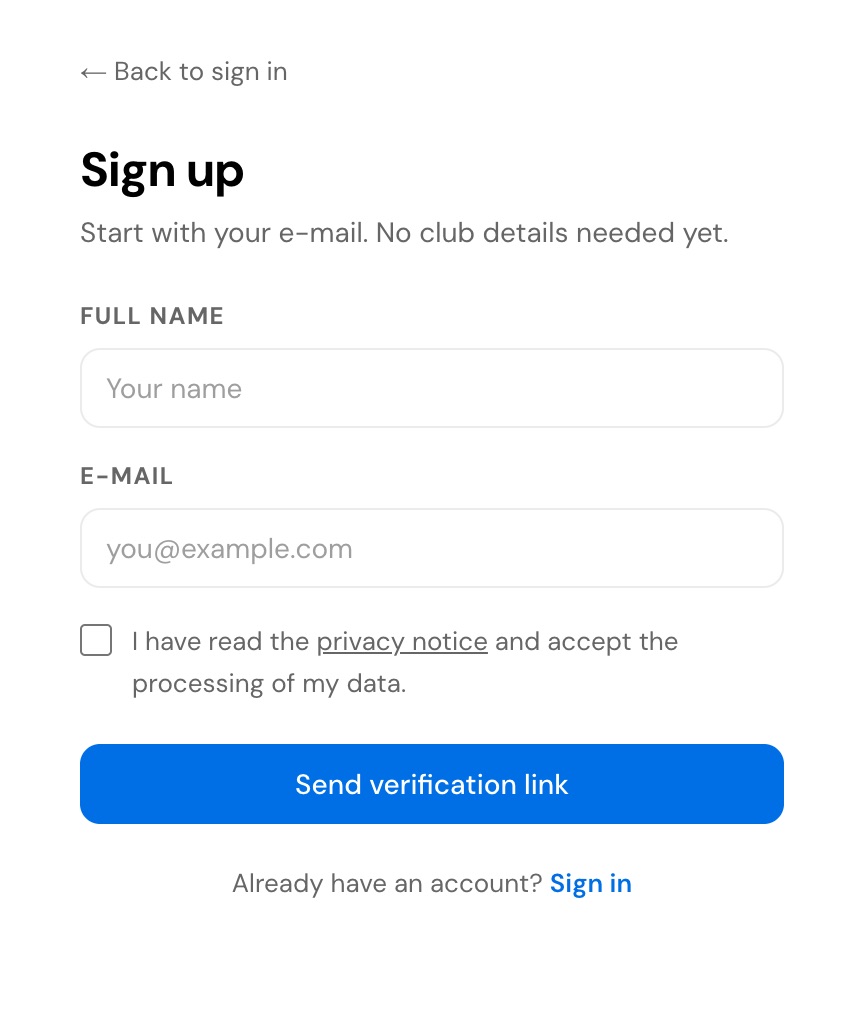
Already registered? Just sign in instead, or use Forgot your password?
Step 2
Activate your account and create your club
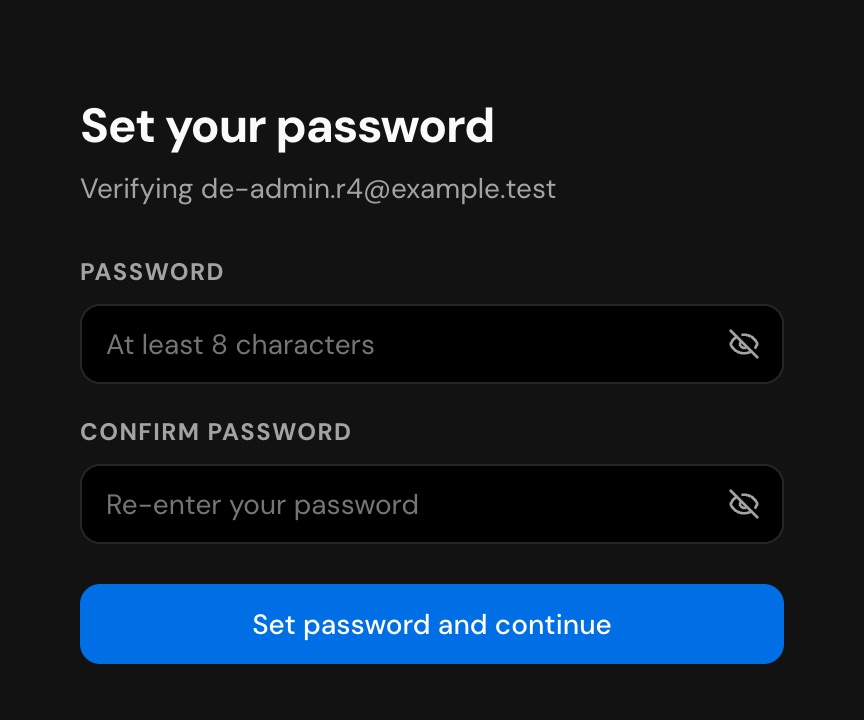
Open the verification e-mail and click Set password. Enter your password twice and click Set password and continue; you are signed in.
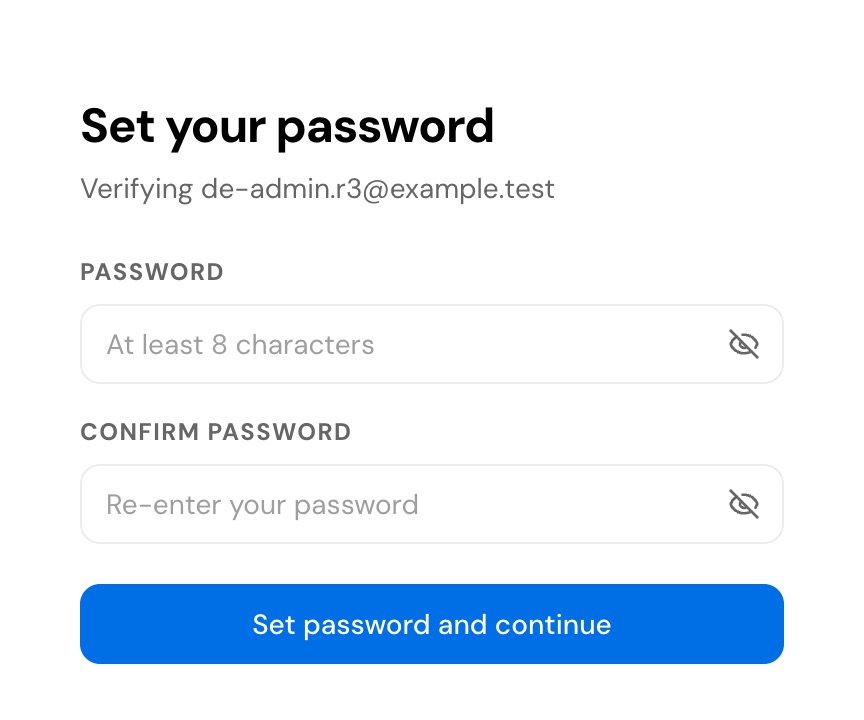
No e-mail? Check your spam folder, then click Resend on the confirmation screen.
Choose Take part in a tournament, enter your club or federation name, pick your country and click Create club.
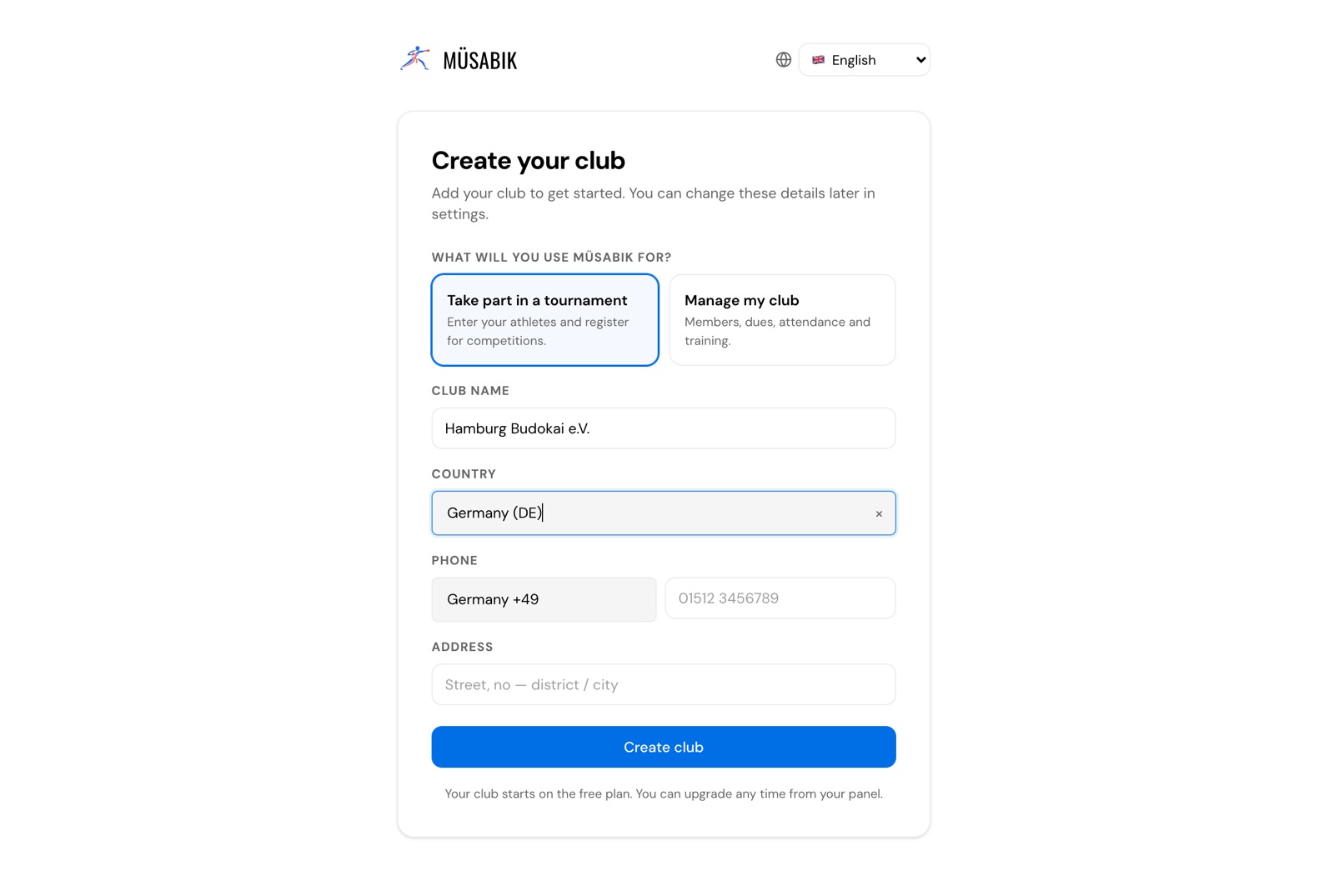
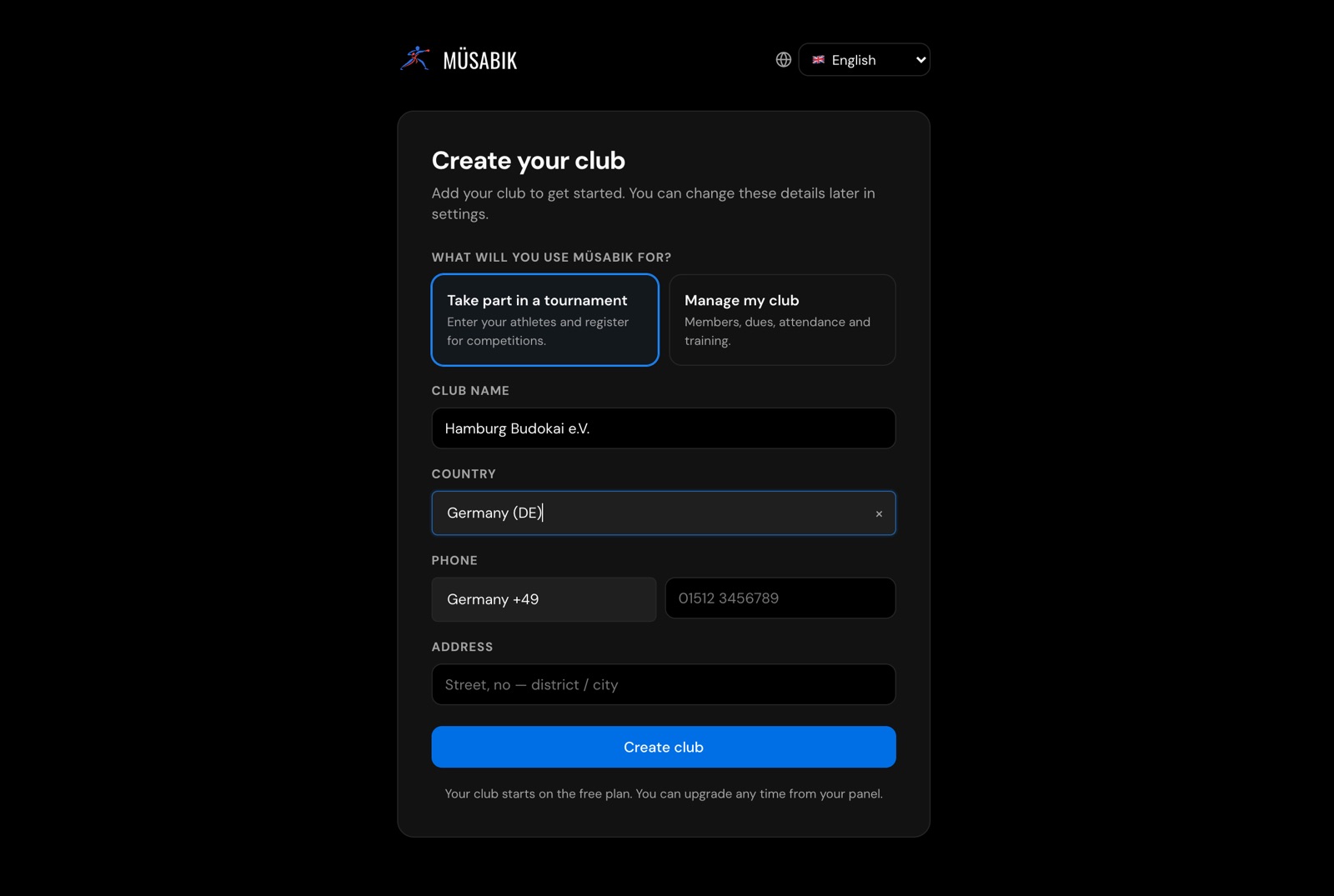
Choose your own country: the Team officials, Referees and Travel & Logistics tabs appear only for clubs from outside Türkiye.
Step 3
Request to join the tournament
In your panel, open Competitions, find the tournament and click Send join request.
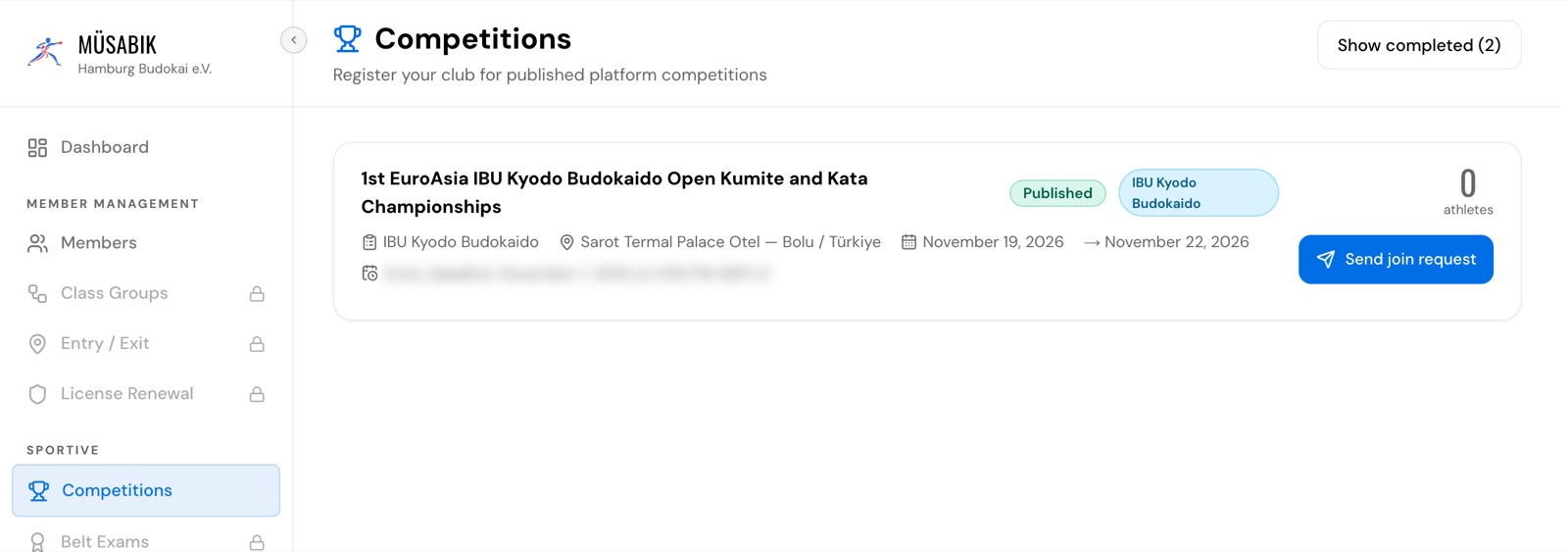
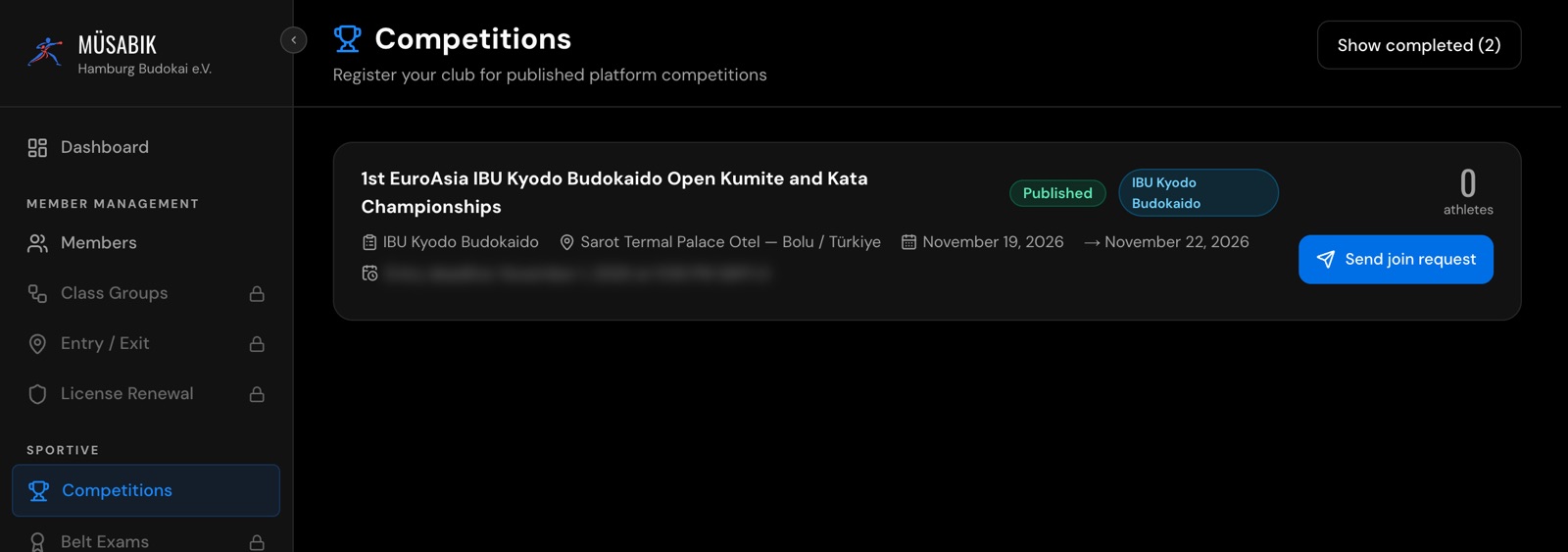
The panel is in English and Turkish: if you chose another language, it opens in English. Switch between them with the flag button at the bottom of the left menu.
The card shows Awaiting approval. You receive an e-mail when the organiser approves; the card then shows Create participation request.
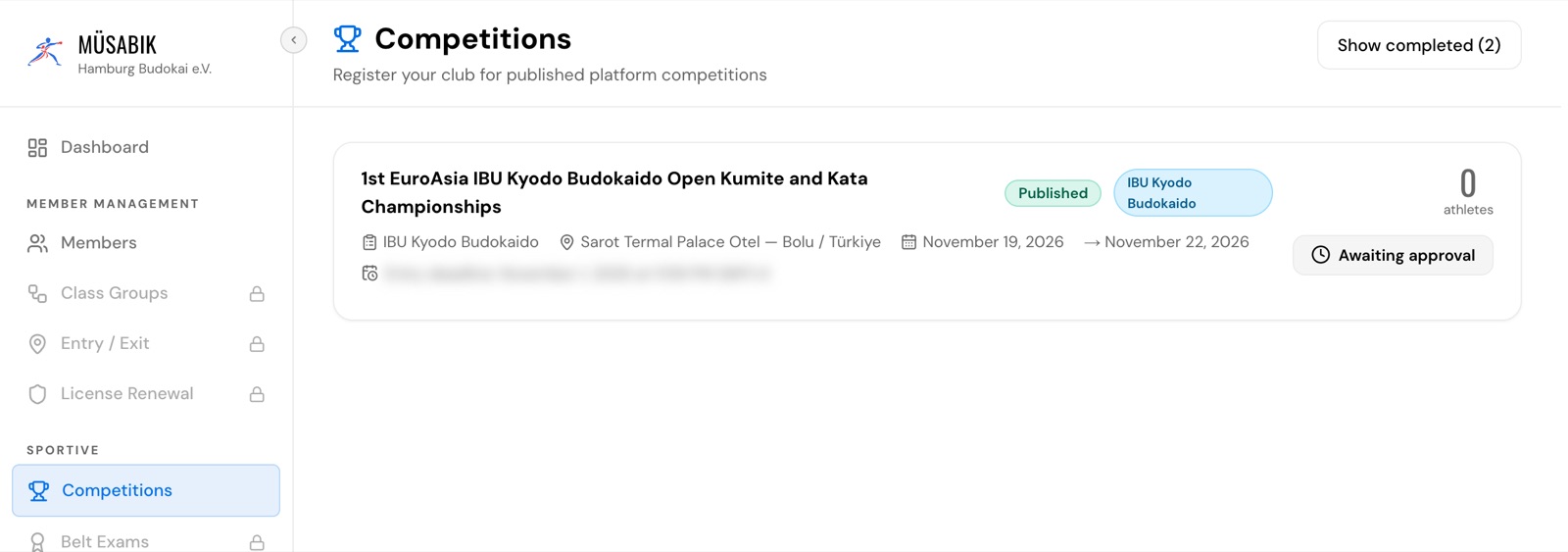
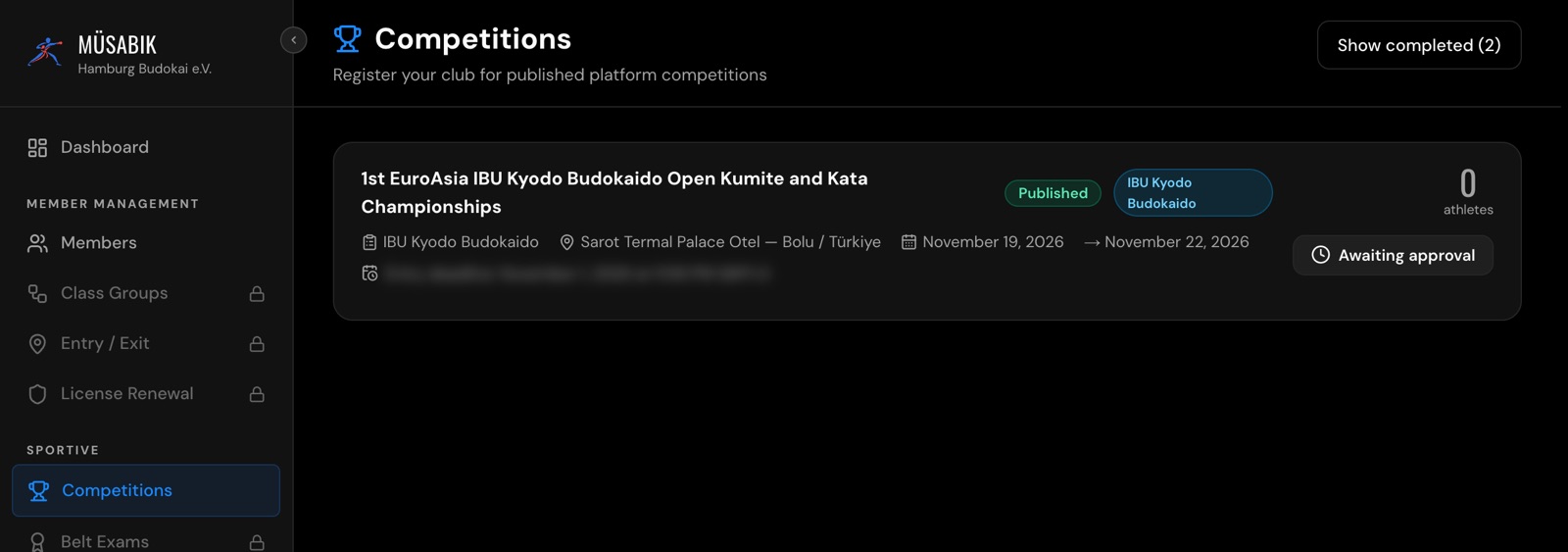
Tournaments that admit every club skip this approval.
Step 4
Add your athletes
Open Members › New Member. Enter the full name and passport number (Passport is preselected); phone is optional. Click Add Member.
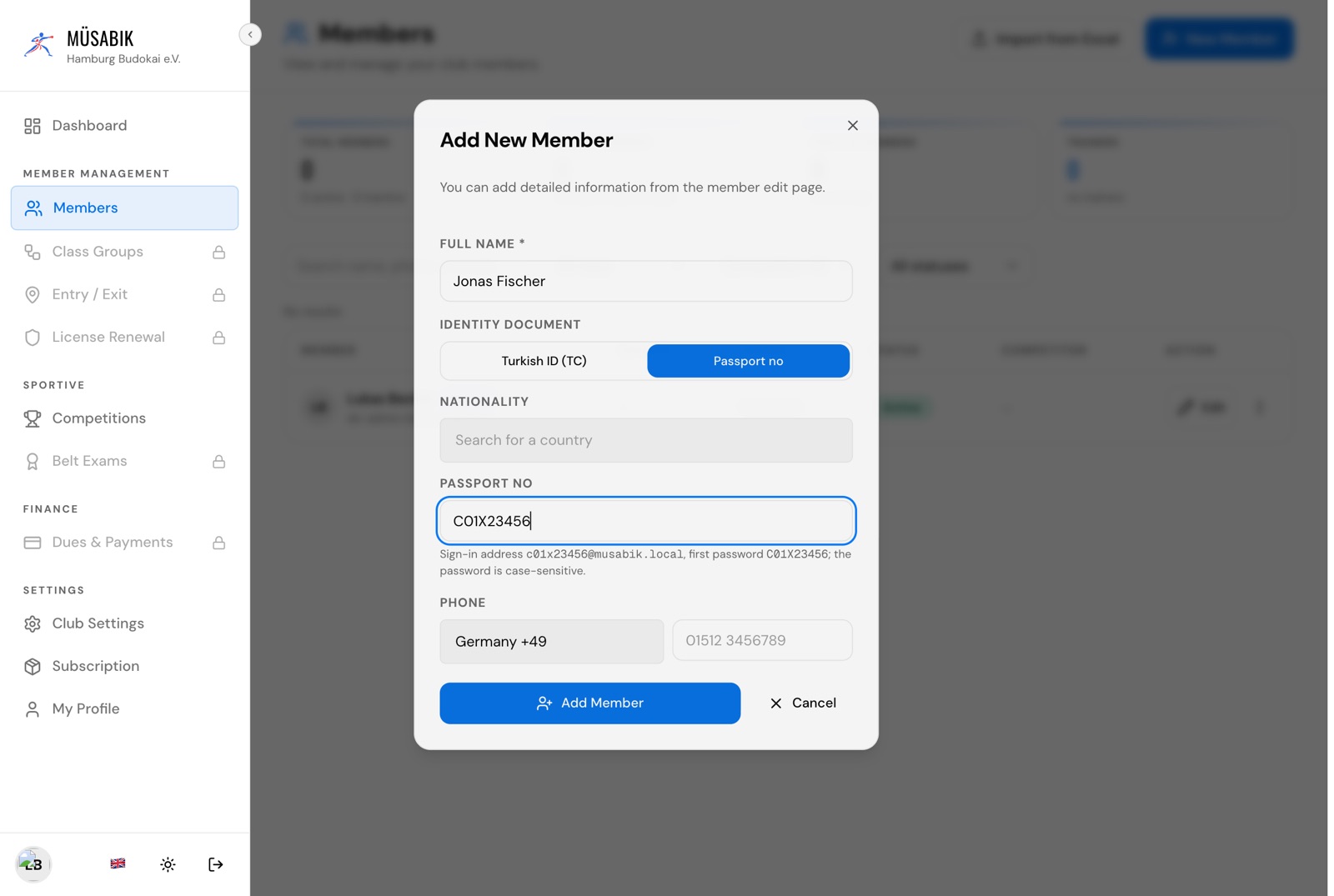
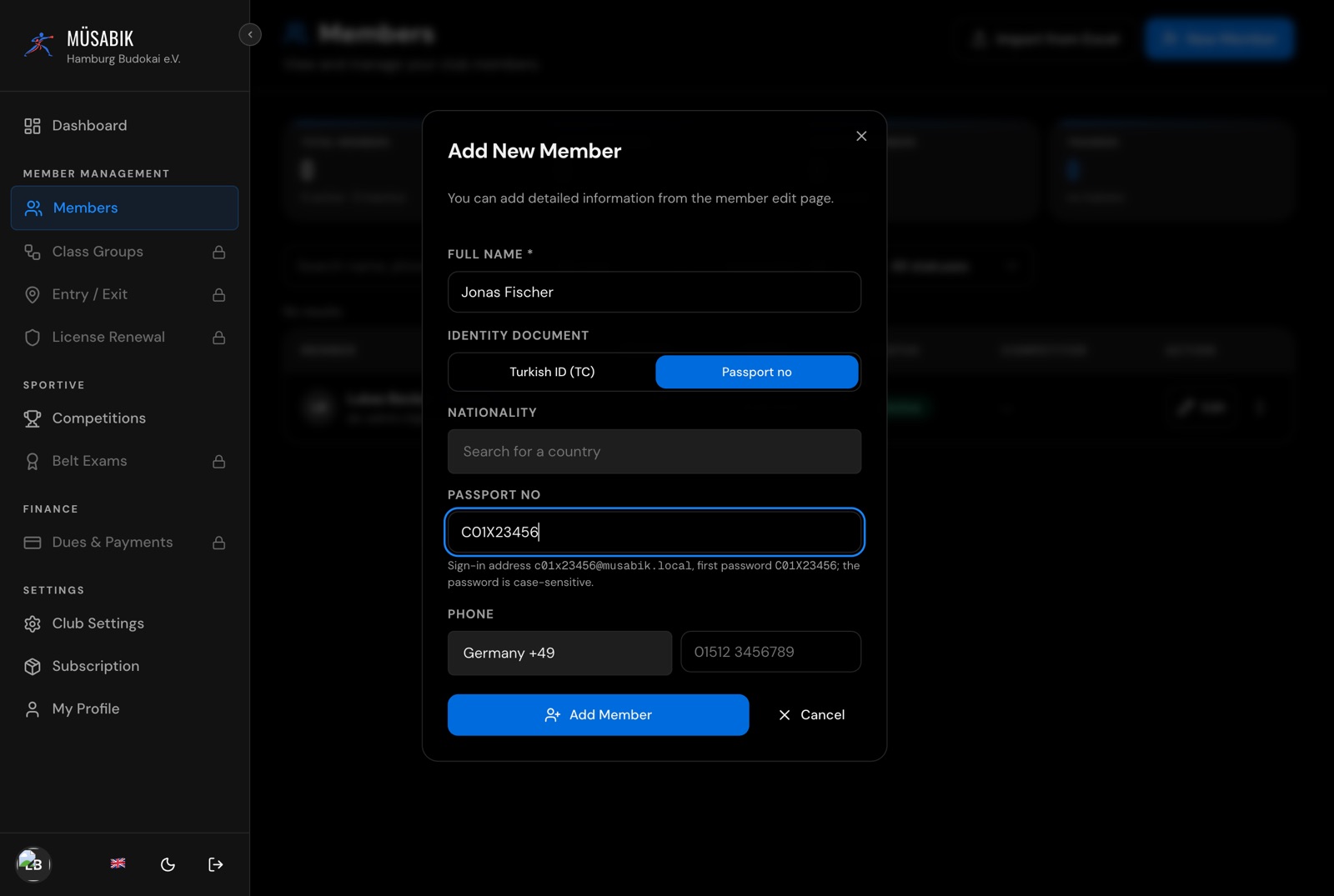
Coaches are not entered per athlete; add them on the Team officials tab.
On the tournament's Athletes tab, click the pencil next to an athlete, fill in date of birth, gender and weight, and click Save.
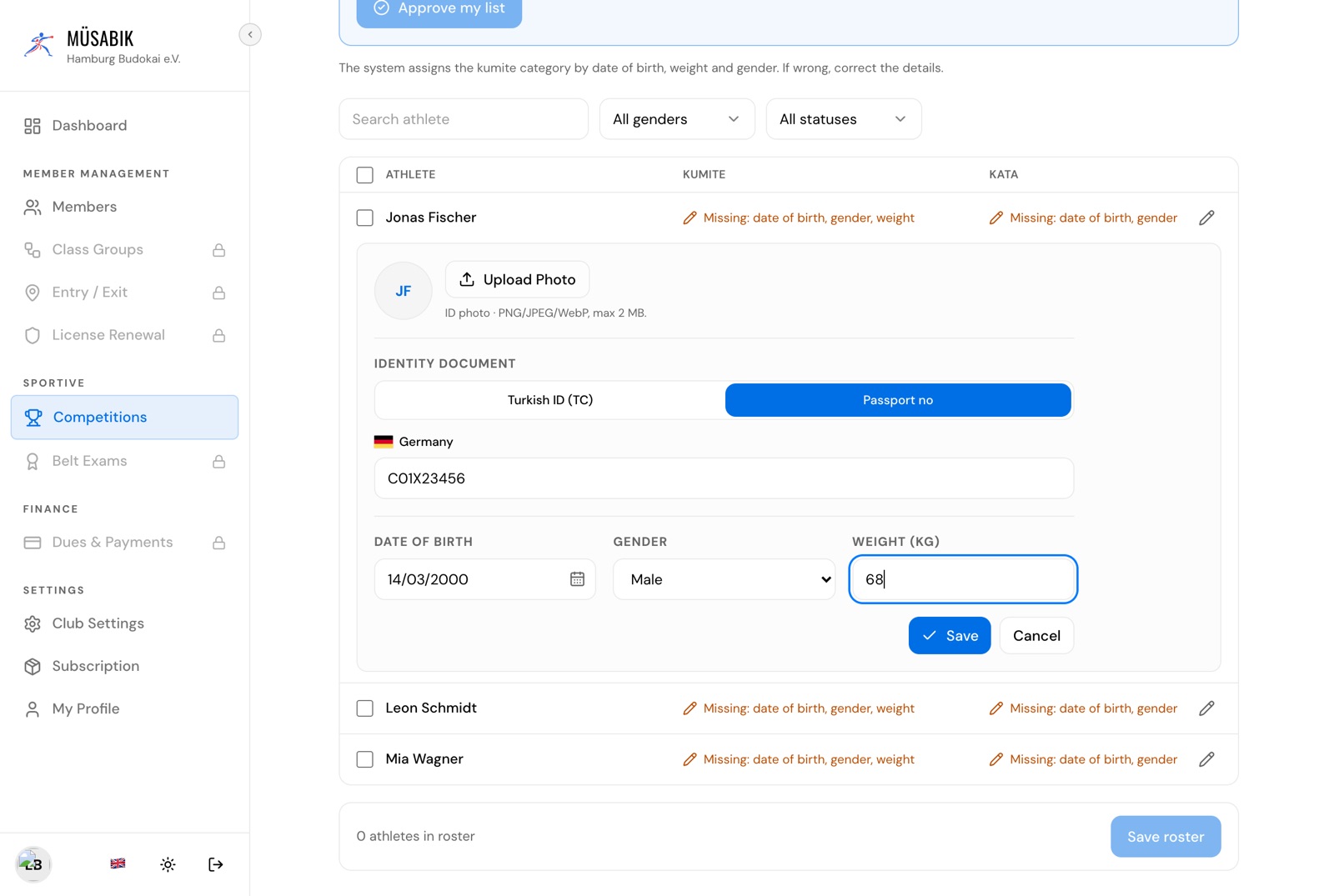
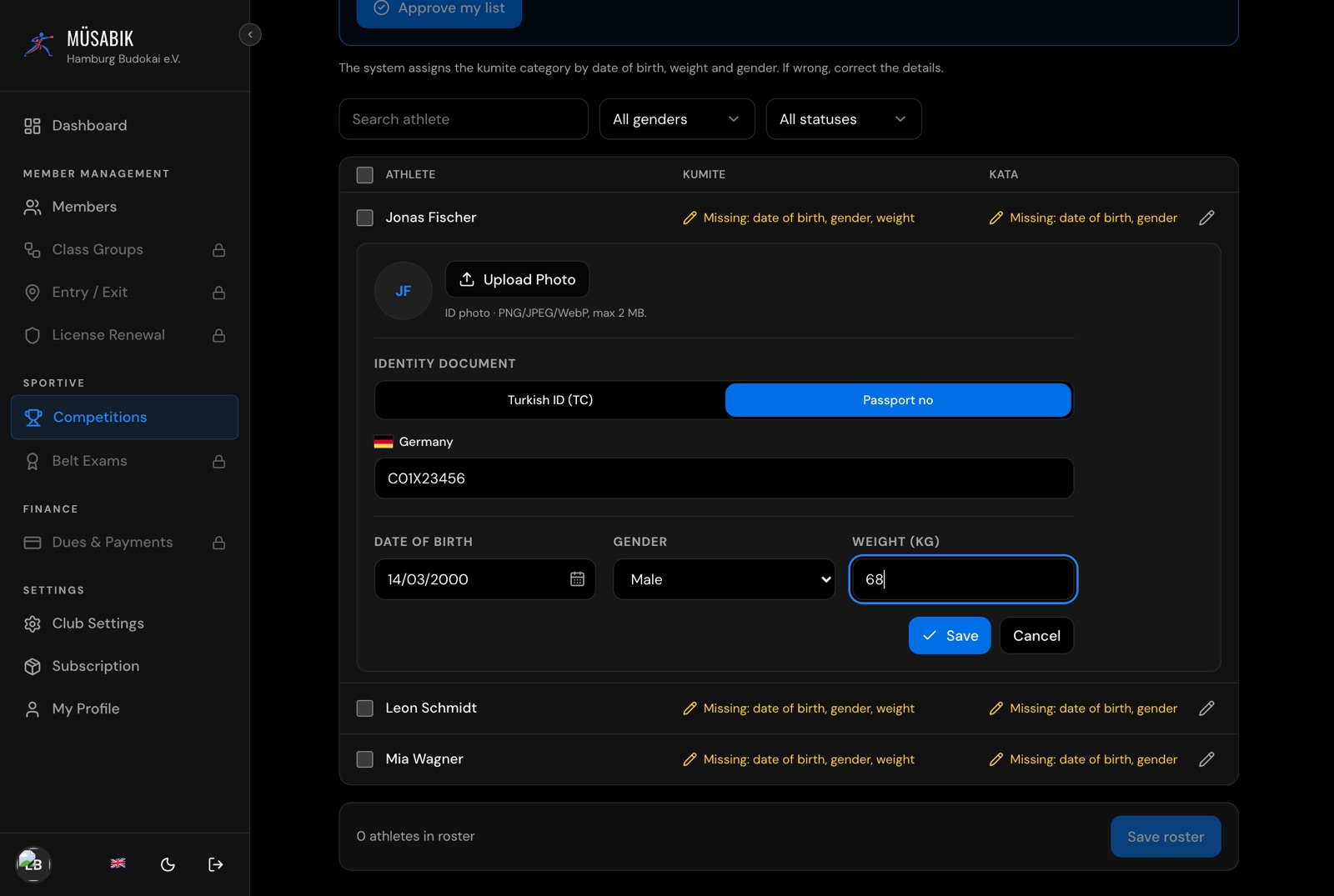
Tick the disciplines (for example Kumite or Kata) — the matching category is shown — then click Save roster.
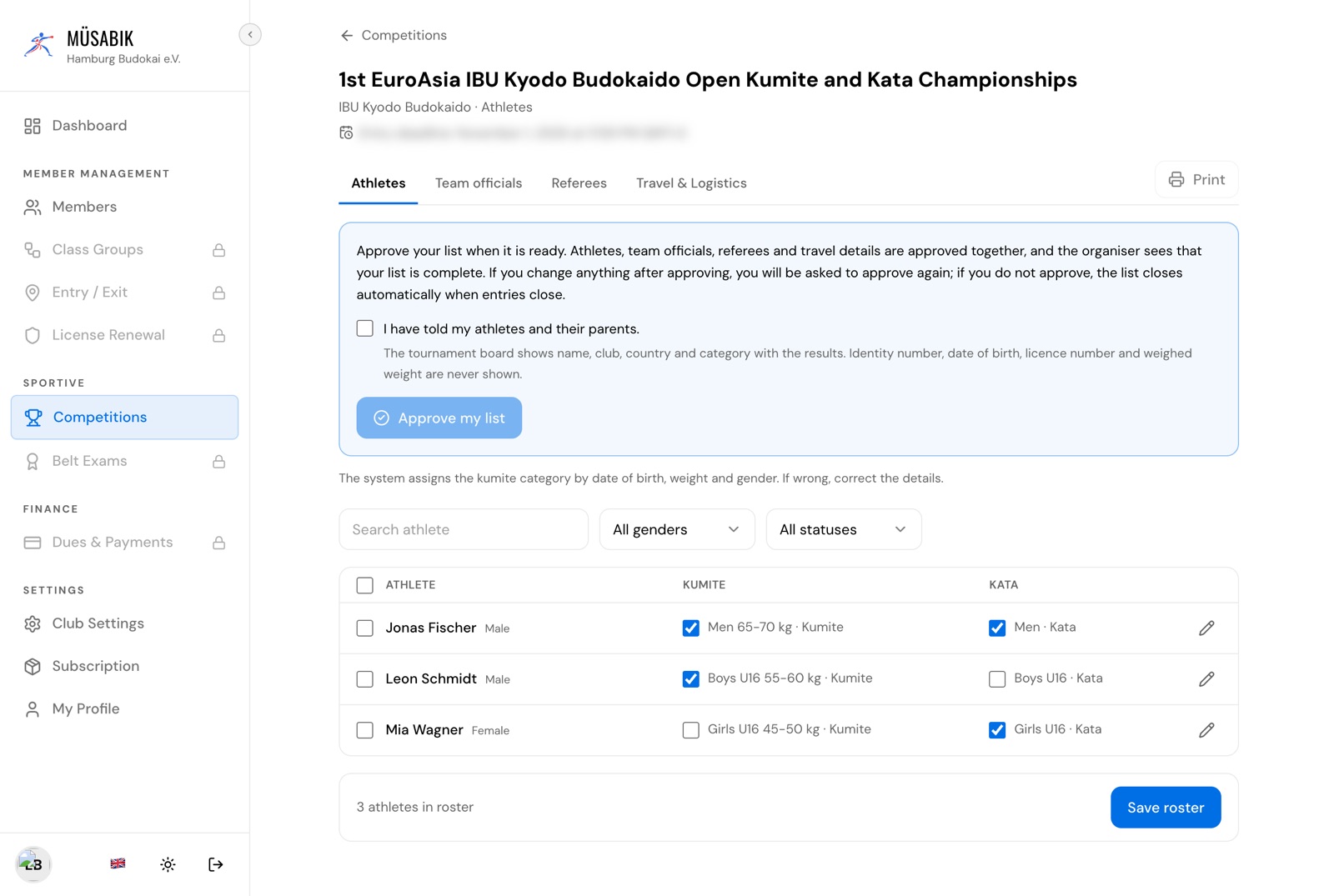
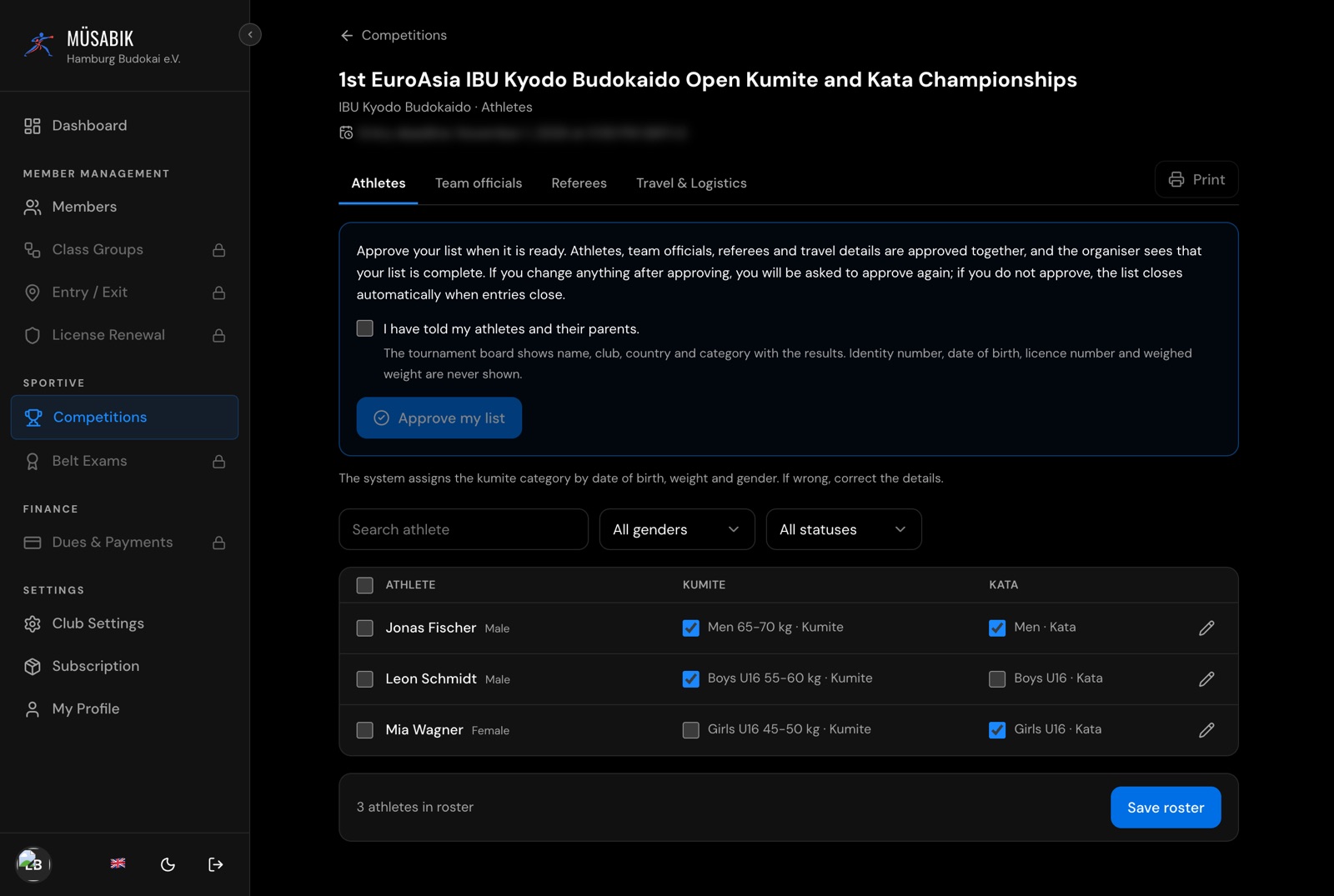
The category is decided by date of birth, gender and weight. If you correct these later, check the category in the row and save the roster again.
Step 5
Declare your team officials and referees
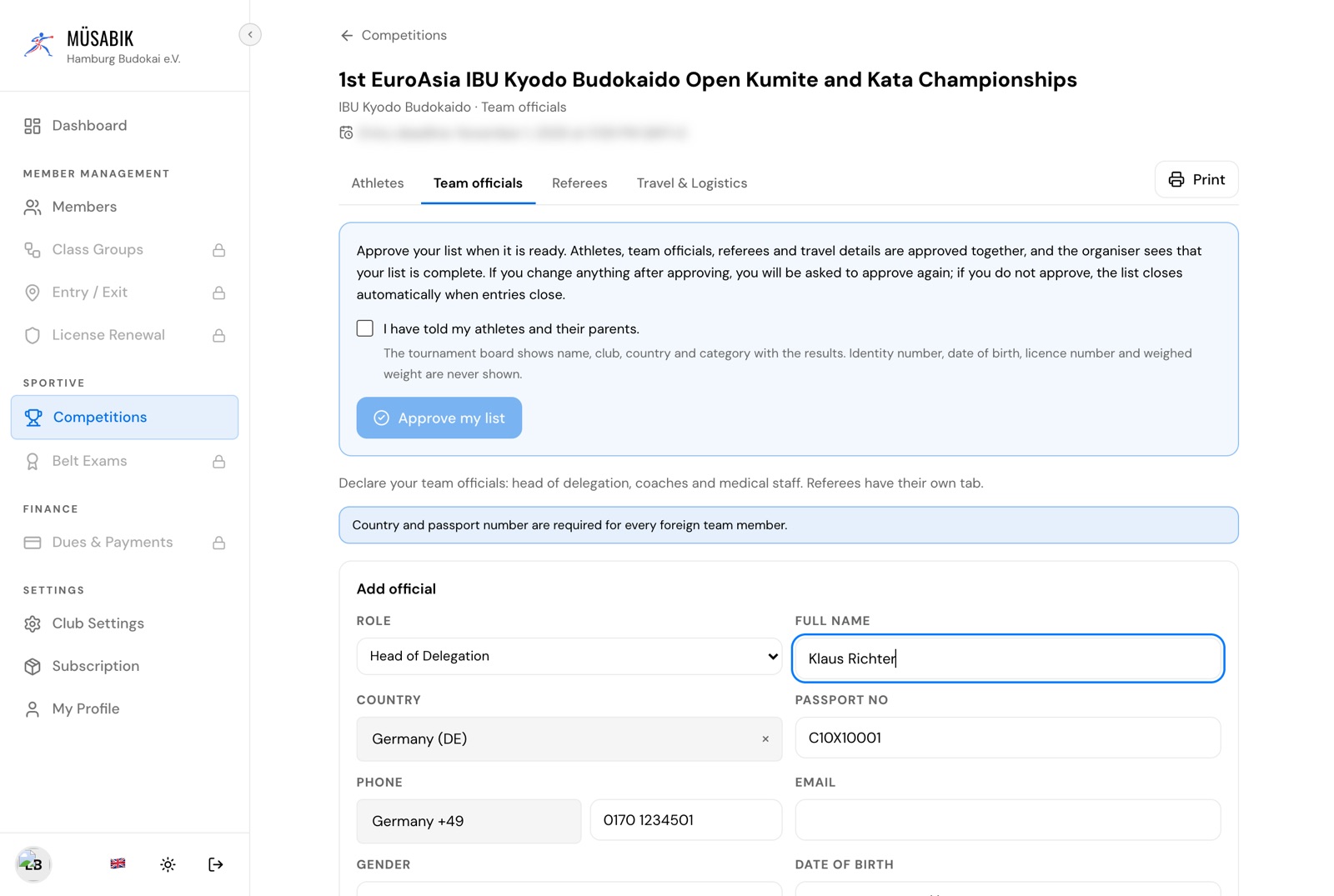
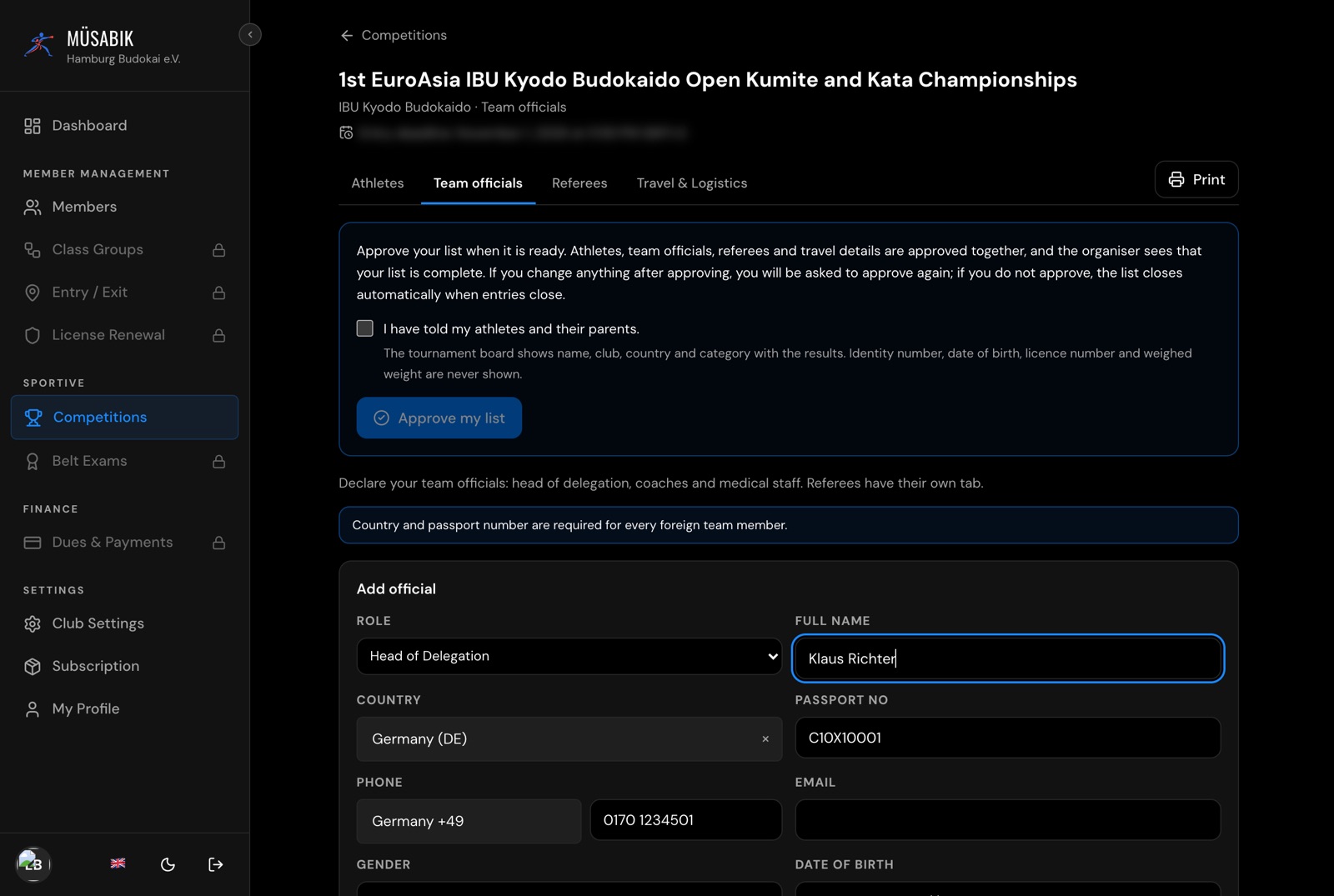
On the Team officials tab, click Add and choose the role: Head of Delegation, Coach or Doctor / Medical. Country and passport number are required; date of birth and gender help the hotel.
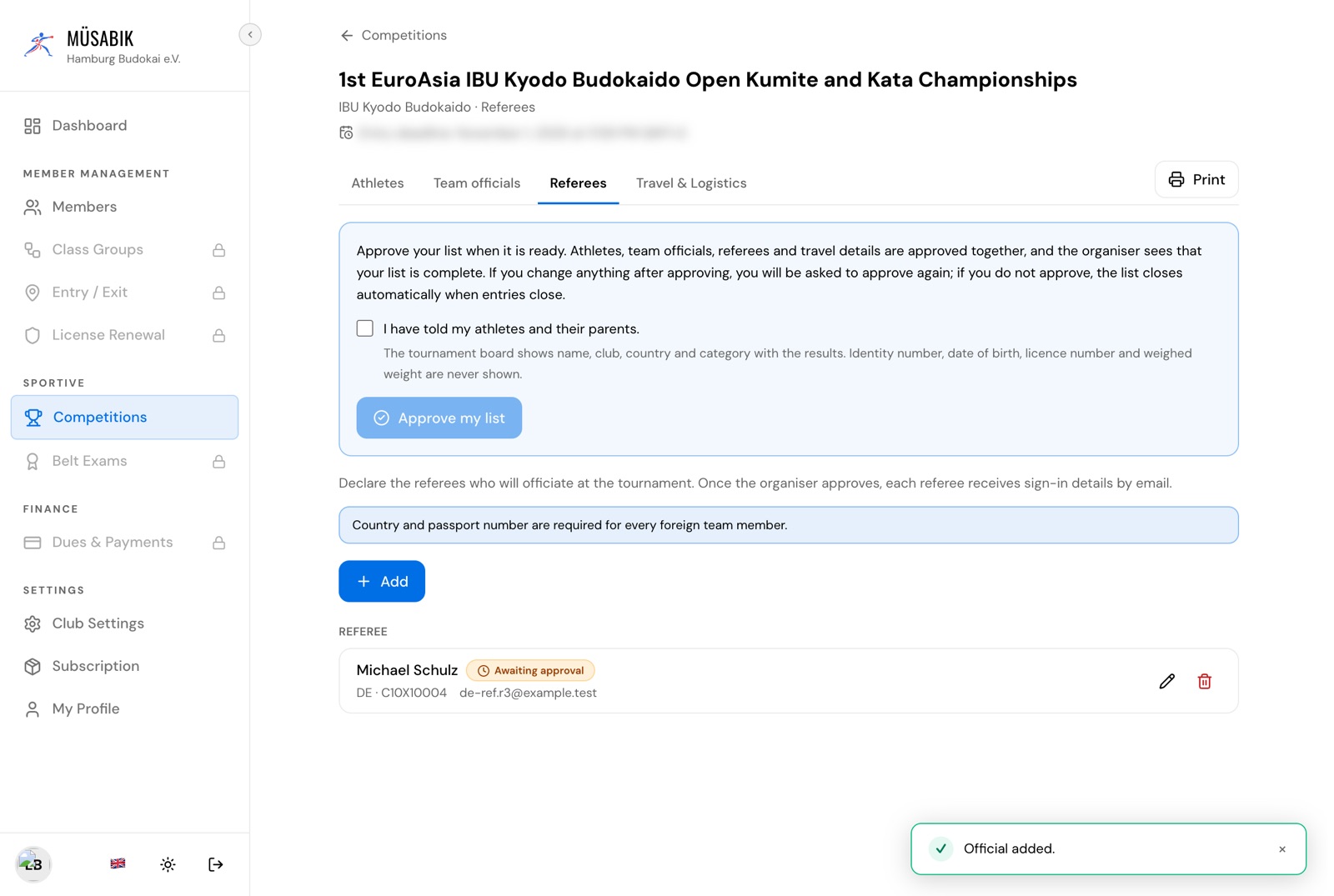
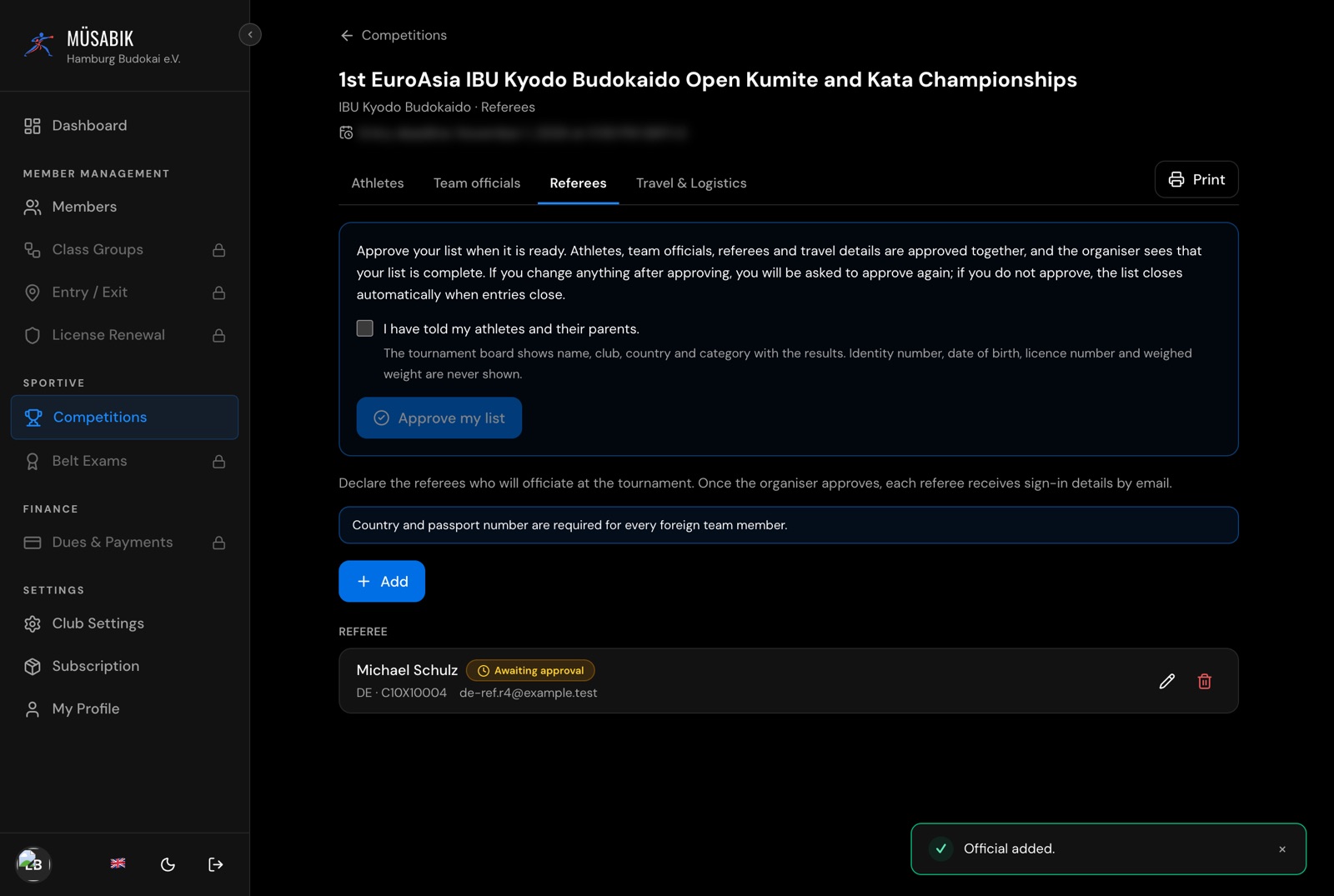
On the Referees tab, add each referee with their own e-mail address. When the organiser approves a referee, an account is created and the sign-in details are e-mailed to them.
Step 6
Travel & logistics
On Travel & Logistics the headcount is calculated automatically. Add accommodation notes and, if you need a transfer, tick Transfer needed and enter arrival and departure (Türkiye time), locations and flight numbers. Click Save logistics.
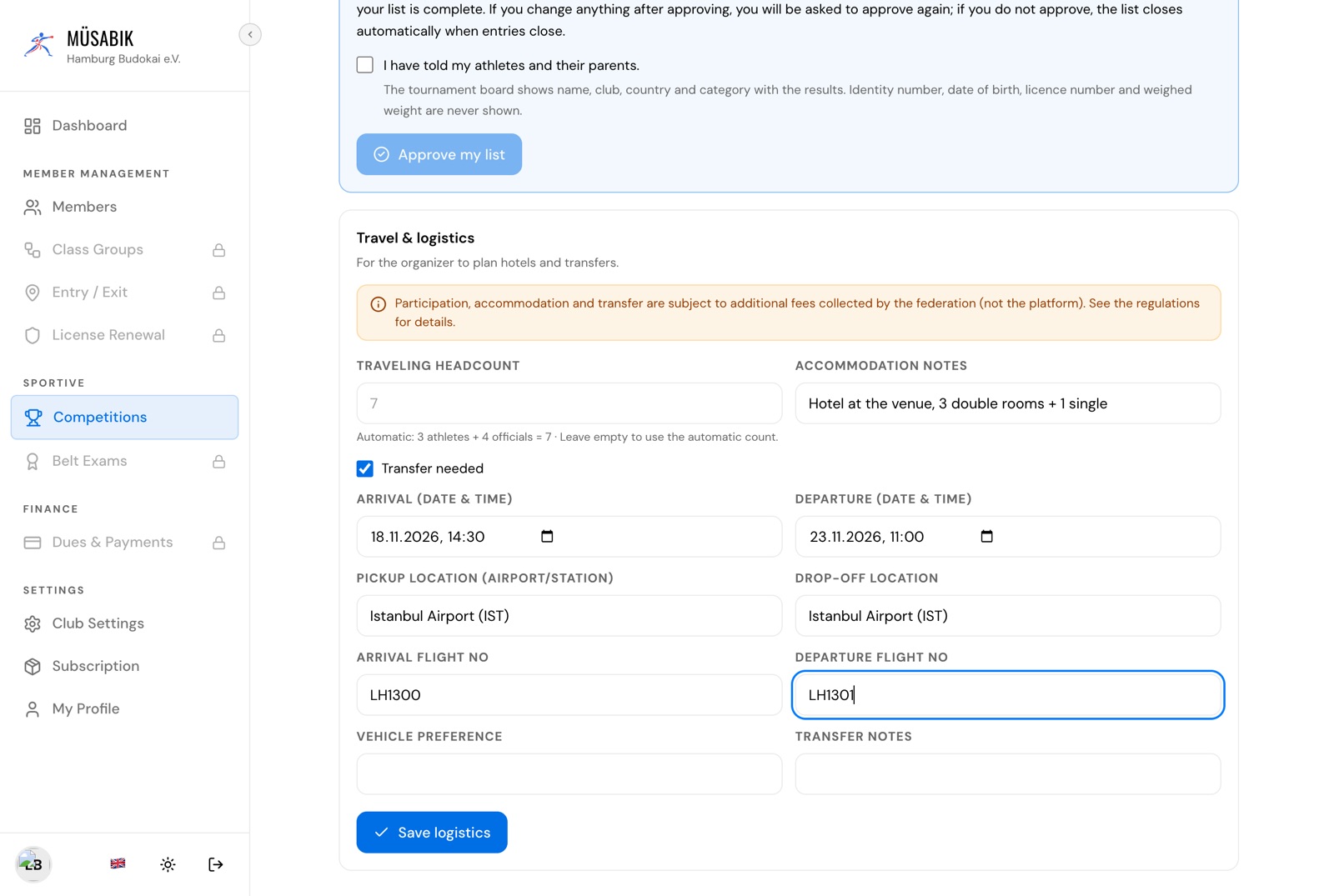
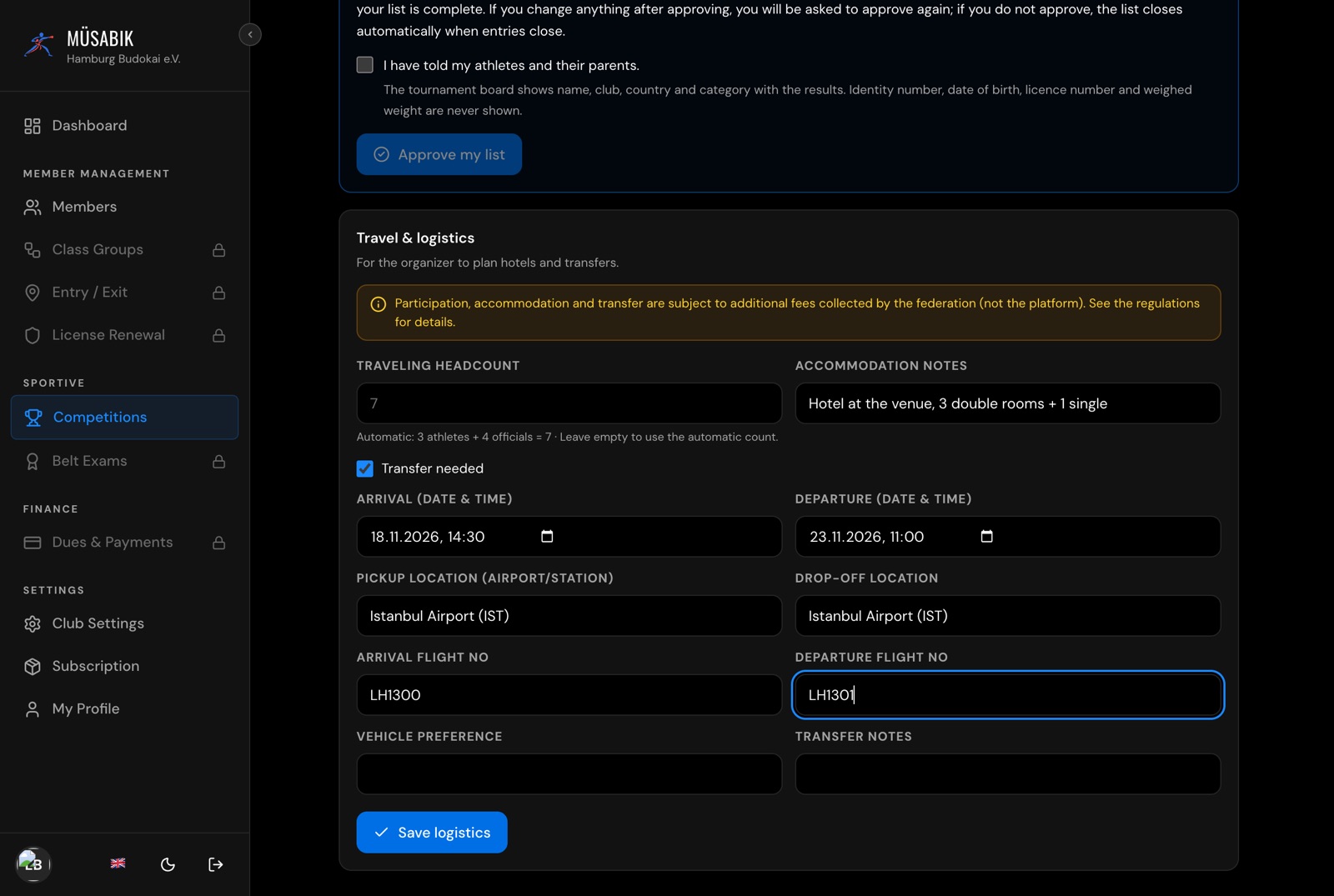
Fees, if any, are collected by the organising federation, not by the platform. See the tournament regulations.
Step 7
Approve your list
When your lists are complete, click Approve my list on any tab. Athletes, team officials, referees and travel are approved together; the first time, tick I have told my athletes and their parents.
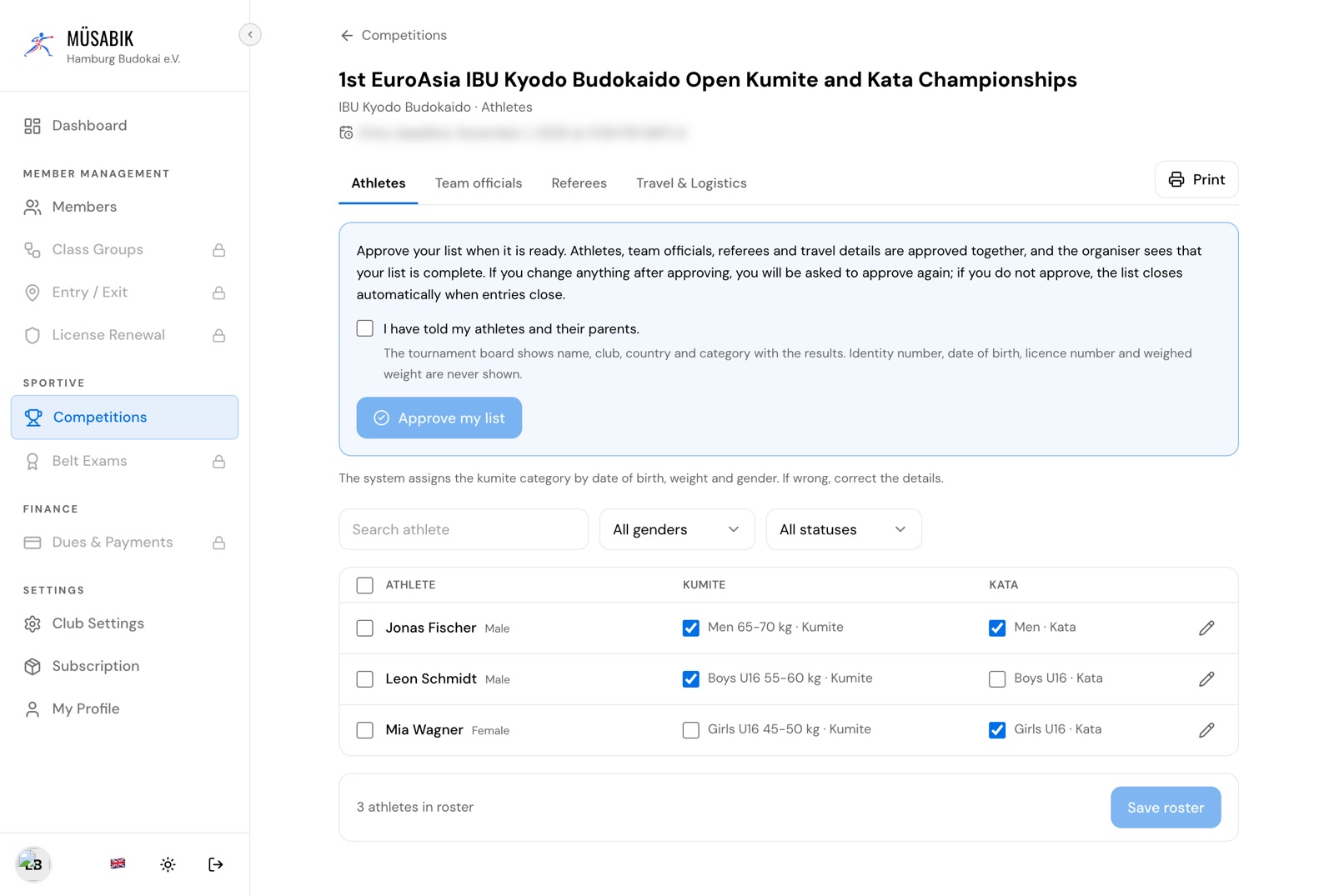
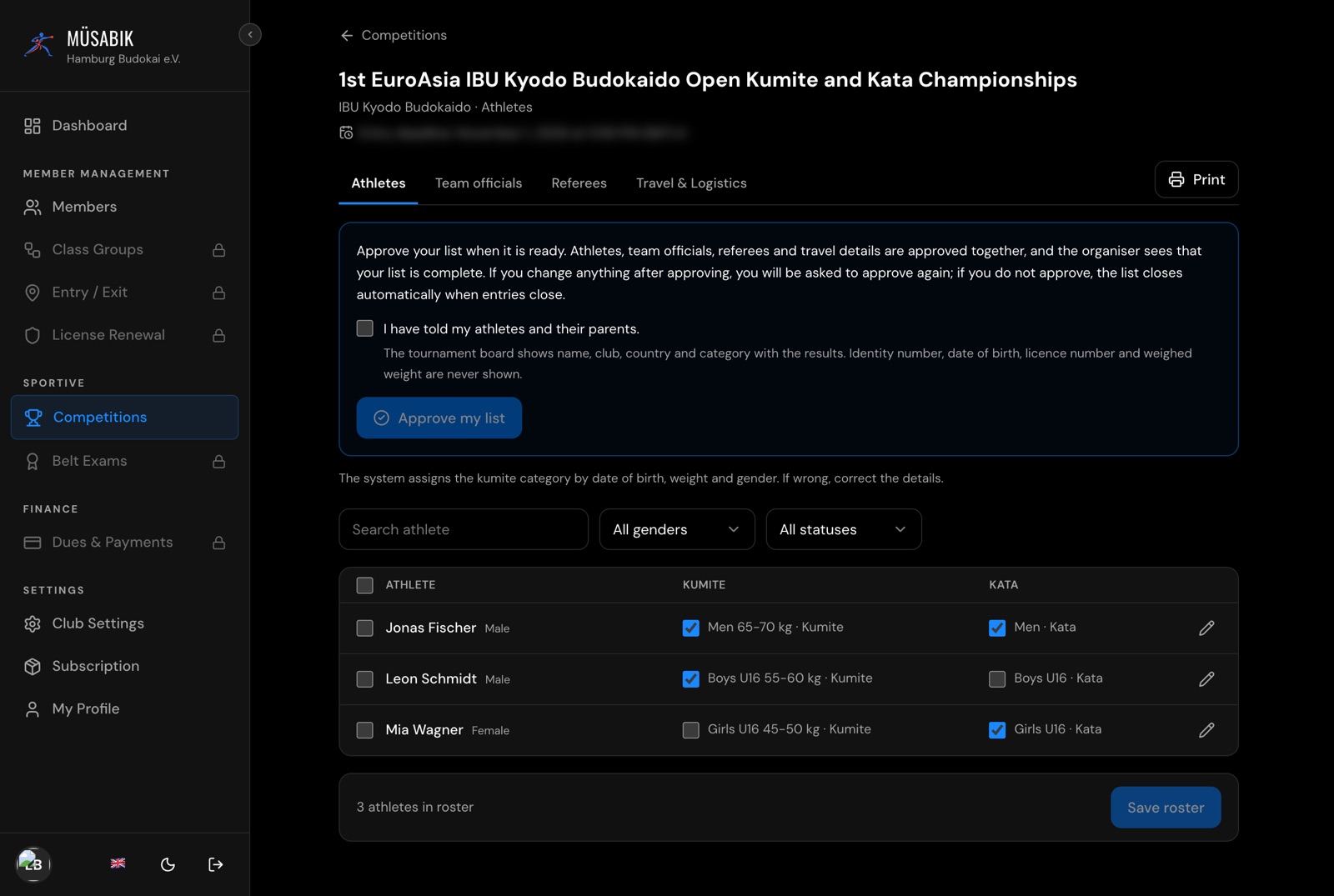
If you change anything afterwards, you are asked to approve again. If you have not approved by the deadline, your list closes automatically.
Print at the right of the tab bar prints the current tab; Print on the tournament card prints the whole entry pack.


Common situations
- The verification e-mail didn't arrive
- Check your spam folder, then click Resend on the confirmation screen. Still nothing? Message Müsabık with the WhatsApp button below.
- I can't sign in
- Use Forgot your password? on the sign-in page. The link is valid for 1 hour.
- I signed in but have no club
- You are taken to Create your club — finish step 2.
- The tournament won't let me add athletes
- Your join request may still be awaiting approval.
- An athlete row shows Missing: …
- Click it and fill in date of birth, gender and weight.
- Nothing opens when I click Print
- Allow pop-ups for the site and try again.
Questions
Questions about the tournament — entry, categories, fees, travel — go to the organiser listed on the tournament page. For help with your account, signing in or the screens, message Müsabık on WhatsApp.
Message Müsabık on WhatsApp